First, check what closed
First identify what closed: VPhoneOS, the whole virtual phone, or one app inside it. Collect the matching logs promptly. If reproducible, record the process and include VPhoneOS and app versions plus the app’s download source.
VPhoneOS itself closes: you return to your phone’s home screen, or VPhoneOS closes as soon as you open it.
One virtual machine stops: VPhoneOS still opens, but a virtual machine fails to start, shuts down unexpectedly or shows an error code.
One app inside a virtual machine closes: the virtual Android desktop and other apps still work.
If the crash just happened, export the logs below before trying again. Avoid repeated restarts, clearing data or uninstalling first, and save any work you can. Logs change when the app or virtual machine starts again, so collect them promptly.
Get logs for the affected part
Choose the case that matches your problem.
VPhoneOS itself closes
Reopen VPhoneOS → Settings in the bottom navigation → About → Export logs
If VPhoneOS can reopen, go straight to About and tap Export logs before starting any virtual machine. This collects logs from VPhoneOS and its virtual machines. Wait for collection to finish, then choose an available save or send option in the Android share sheet.
Check the result Keep the generated log archive and note approximately when the crash happened.
If VPhoneOS closes immediately and Settings is unreachable, record the launch and crash, gather the information you can below, and contact official support. Do not uninstall or clear data just to reach Settings.
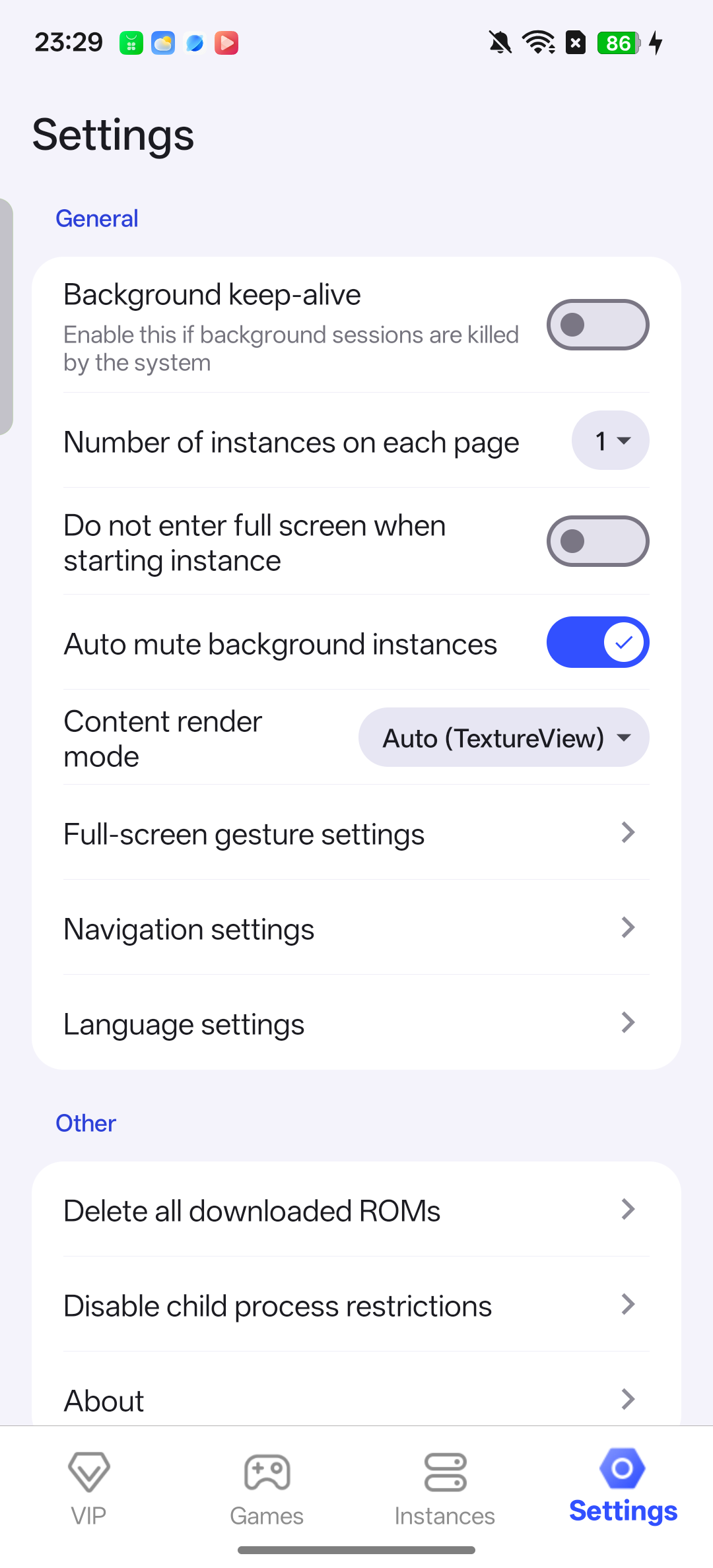
Find About in the Settings tab. 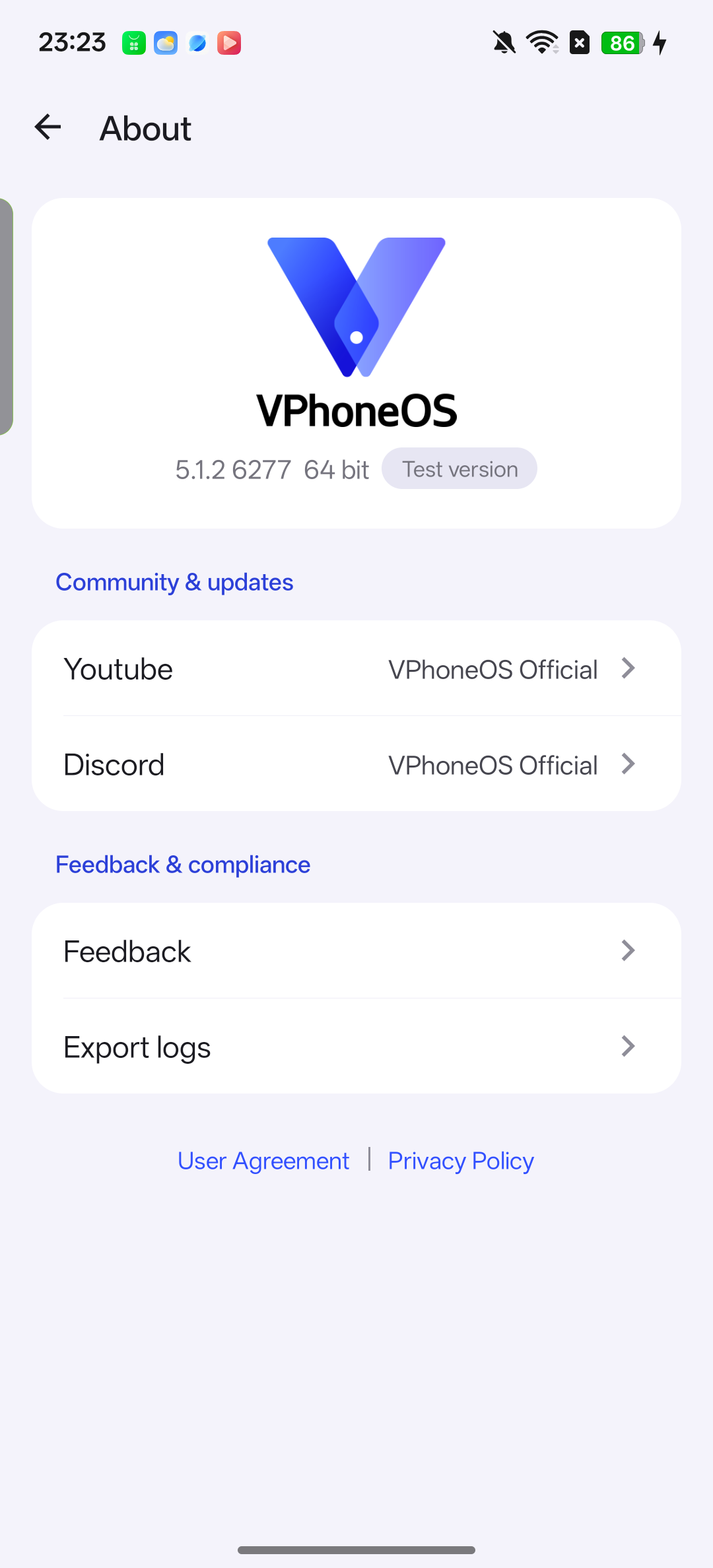
About shows the full version at the top and Export logs below. Report the version shown on your own phone. A virtual machine fails to start or stops
VPhoneOS → Instances → settings for the affected virtual machine → scroll down to Export logs
Screenshot the error and the virtual machine’s name. You do not need to start it again to collect logs. Open that virtual machine’s settings, scroll to Export logs in Maintenance, and wait for the share sheet. If the error dialog itself has Export logs, you can use that button instead.
Check the result Check that you exported logs from the affected virtual machine, not a different working one.
If that virtual machine’s settings are unreachable but VPhoneOS still works, use Settings → About → Export logs and include the affected virtual machine’s name.
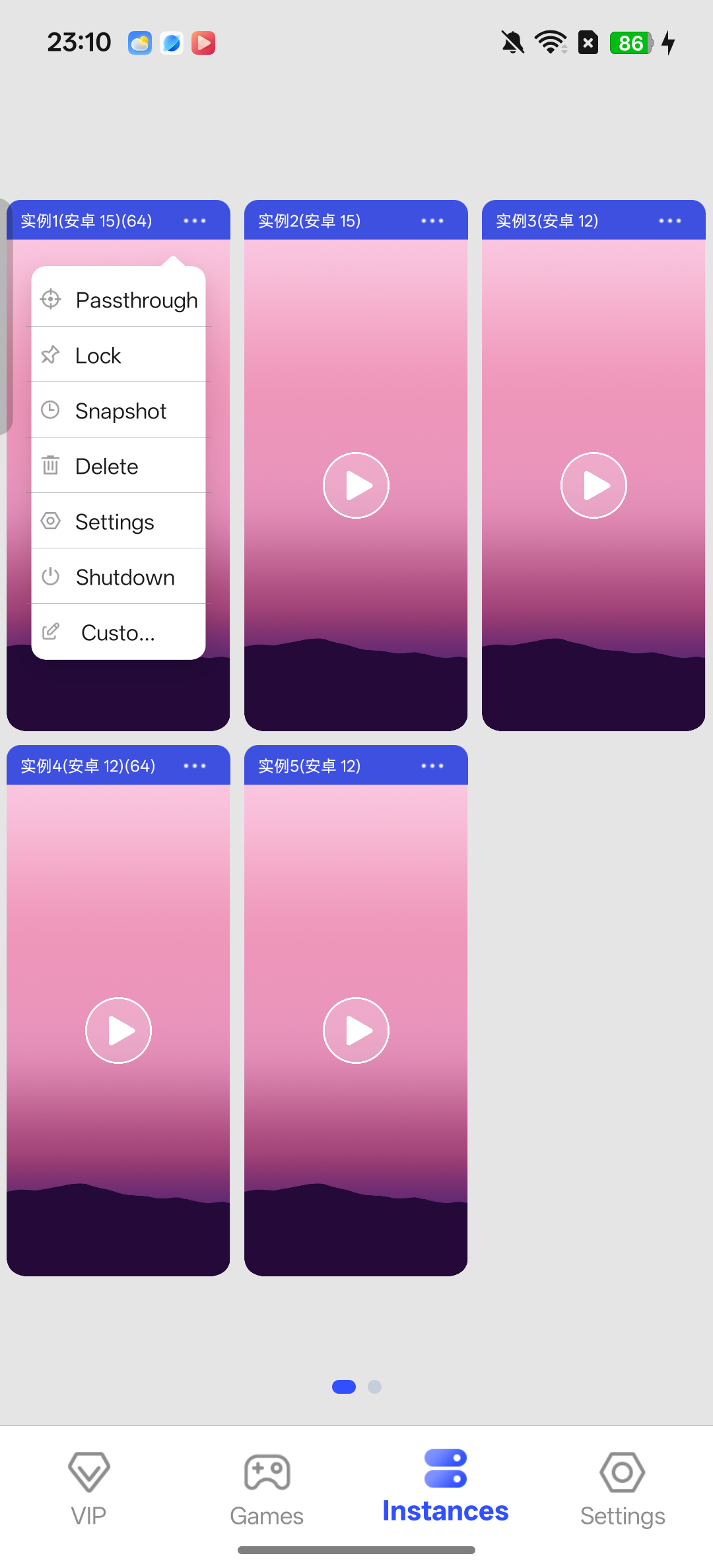
Find the affected virtual phone, tap its three-dot menu and choose Settings. 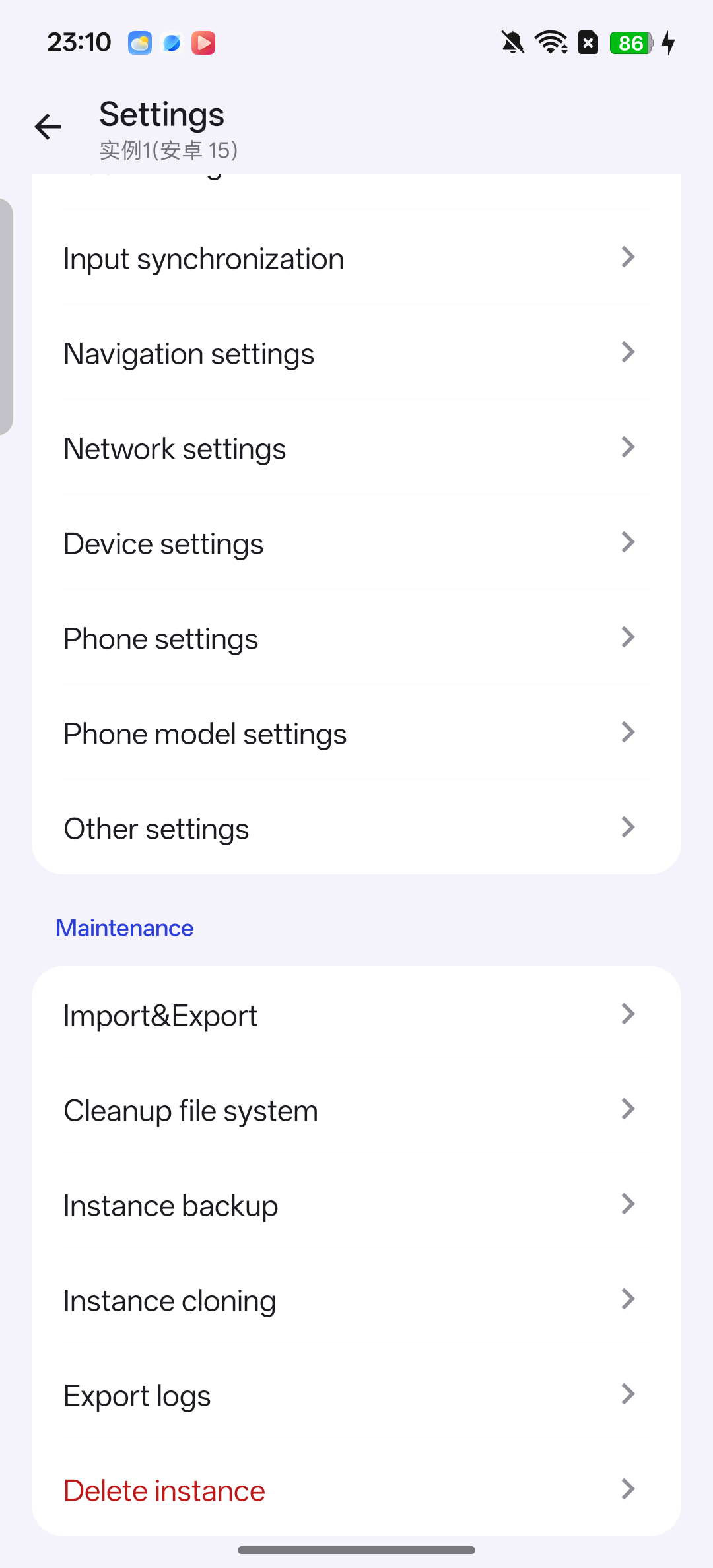
Scroll to Maintenance and choose Export logs. Only an app inside the virtual machine crashes
Affected virtual machine → return to VPhoneOS → that virtual machine’s settings → Export logs
After the app closes, keep the virtual machine running. Use Exit fullscreen in its floating menu to return to VPhoneOS, find the same virtual machine, open its settings and tap Export logs. These logs help investigate what happened inside that virtual machine.
Check the result Keep the log archive and note the affected app’s name, version and the time of the crash.
Record the steps that lead to the crash
Keep the logs you already exported. If the problem can be reproduced, record one complete attempt; do not keep triggering crashes just to make a recording.
Start your phone’s screen recorder
Your phone’s Quick Settings → Screen record
Expand Quick Settings from the top of your phone screen and tap Screen record. If it is missing, check the other pages or add it through Edit. Start recording and wait for the countdown before using VPhoneOS. Names and locations vary by phone. After capturing the problem, stop the recording and check that the video is saved in your gallery.
Use the recorder on your phone itself so it can capture VPhoneOS closing and returning to your phone’s home screen.
Show the version and virtual machine details first
Your phone’s screen recorder; VPhoneOS About and Instances pages
Use your phone’s screen recorder and start before opening VPhoneOS. If accessible, show the version on About, then the affected virtual machine’s name and Android version. State whether it is 32-bit, pure 64-bit or 64-bit with 32-bit support. If you changed relevant settings such as root, Magisk or Vulkan, show their current values without changing them for the recording.
Repeat the original steps once, then collect logs immediately
Same virtual machine, app and actions
Repeat the actions that caused the problem and record until the app closes or the error appears. Note the time, then immediately export fresh logs using the matching case above. Keep this recording together with those logs. If it happens only sometimes, say so and describe what you were doing.
Take a screenshot of the VPhoneOS version
Capture the top of About
VPhoneOS → Settings → About
Capture the product name, full version, following build number and 32/64-bit label at the top of About. See the About screenshot in “VPhoneOS itself closes” above for the location. Say whether you installed VPhoneOS from its website, Google Play or another source. The virtual Android version is different from the VPhoneOS app version; report both.
If VPhoneOS will not open, provide any version shown on its App info page in your phone’s settings or in the original installer details. Say that About is unreachable and mark missing details as unavailable.
Include the affected app’s version and download source
Give the store name or download page
Affected app’s About or App info page, or its original download page
Include the app’s full name and version, with a screenshot if available. Name the source precisely, for example Google Play plus the app listing link, the game’s official download page, or the name of your phone’s app store. If you imported it from your phone, state where that original copy came from. For a manually downloaded APK, include its filename and whether it is a 32-bit or 64-bit build if known. Write “not sure” rather than guessing.
Send the information together to official support
Use the fields below for your report. Mark anything you cannot obtain as unavailable; you can report the problem without every item.
Phone, VPhoneOS and virtual machine details
Report template · device and versions
Phone model: ____; phone OS version: ____; VPhoneOS version and install source: ____; affected virtual machine name: ____; virtual Android version and 32/64-bit type: ____; any changes to root, Magisk, Vulkan or other relevant settings: ____.
What happened and where the app came from
Report template · problem and attachments
What closed: VPhoneOS / the whole virtual machine / one app inside it; app name and version: ____; app store or download link: ____; time of the crash: ____; steps: 1.____ 2.____ 3.____; result or error code: ____; every time or only sometimes: ____; attachments: log archive, screen recording and version screenshots.
Share the files privately with official support
VPhoneOS → Settings → About → feedback or official community entry for your edition
Send the description, recording, version screenshots and matching logs together to official support. International editions link to the official Discord from About; follow support staff’s instructions for sharing files privately. Do not post full logs, account details or recordings with private content in public channels, and do not send passwords or verification codes.
If VPhoneOS will not open, use the official support link on the website. Explain that it closes immediately and logs cannot be exported, then send the information you have.
Frequently asked questions
What if exporting logs fails?
Screenshot the failure message and note the virtual machine and time. The app may report missing logs or insufficient storage. If storage is low, free some space and try once more without clearing VPhoneOS data. If it still fails, send the message and available information to official support.