First, find out what stopped working
Choose what went wrong: VPhoneOS closed, a virtual phone stopped, an app crashed, error 62 appeared, or an account or setting is not working. Start with the relevant answer, then follow its detailed guide before clearing data.
These settings are for Android virtual machines. After each change, return to the affected virtual machine and app to check whether it helped.
Frequently asked questions
What should I do if VPhoneOS or an app inside it crashes?
First check what closed: VPhoneOS, the whole virtual phone or one app inside it. Save a screenshot of any error and follow the crash guide below to collect logs promptly. Avoid repeated restarts, deleting the virtual phone or clearing data first. If you can reproduce the problem, record one attempt and export fresh logs immediately afterward. Send the logs, recording, VPhoneOS version screenshot, and the affected app’s version and download source to official support.
Why is a member feature unavailable even though I have a subscription?
Check your connection, then verify the signed-in account and current access on the membership page. If the membership-status update timed out, sign out and sign in again after the connection is stable, then retry the original feature. Contact the support channel for your edition if it remains unavailable; do not repeatedly purchase to resolve the same issue. See the dedicated help page for Google Play charges or missing subscriptions.
What does error 62 mean, and what should I check?
Error 62 means the virtual machine stopped unexpectedly. It can have several causes. If your phone limits the helper tasks it needs, called child processes, open Settings → Disable child process restrictions in VPhoneOS. Follow the guide for your phone, then restart the affected virtual machine. If the error returns, note when it happens and report it through support in About.
How do I hide the floating control at the edge of the screen?
In the VPhoneOS app, open Settings → Navigation settings and turn off Enable float ball. Return to the same page to enable it again. If Override global settings is enabled for the target virtual machine, adjust the floating control in that virtual machine’s Navigation settings instead.
What can I adjust when multiple virtual machines feel slow?
Close virtual machines you do not need. Then follow the display steps below: try turning off Use cpu big cores to render and setting Max FPS to 30, restart and compare. For smoother motion in a single virtual machine, try the switch on with 60 FPS if your phone supports it. Being able to create 256 virtual machines does not mean running all 256 together.
Can I use a VPN inside a virtual machine?
The Google Play edition does not support VPNs inside a virtual machine. To use a VPN there, download VPhoneOS from the official website (www.vphoneos.com), then install and connect your VPN app inside the virtual machine.
How do I transfer files between my phone and a virtual machine?
Open Import&Export from the virtual machine’s settings or floating menu. Start the virtual machine before importing. When exporting, select your files and check which phone folder they will go to. Folders differ by edition, so use the app’s controls rather than looking for a fixed folder.
How do I move an Android virtual machine to another phone?
Before restoring on another phone, check that it and the app edition support the backup’s Android system and architecture. The guide currently verifies restore on the same phone; cross-phone restore has not yet been verified. Keep the original data and complete backup until apps and files work on the new phone. Account sign-in and other phone files are not copied by the backup.
I already sign in by email. Do I need to link it again?
No. Use the same VPhoneOS email and password in the website version. You do not need to link it again or buy VIP again.
How do I turn off built-in root?
The Google Play edition has root enabled by default and no Root switch. To turn off built-in root, use the edition from www.vphoneos.com. Open the target virtual machine’s Settings → Root settings, turn off Enable root, then restart as prompted. If you have installed Magisk, this switch does not remove Magisk root; see the Magisk guide.
Why are the Root and Magisk settings missing?
The Google Play edition does not include the Root or Magisk switches. Root is enabled by default. The edition from www.vphoneos.com includes both switches. If you need these settings, download the website edition and sign in with your linked email account.
After installing Magisk in the Google Play edition, a popup reports a third-party su. Do I need to remove it?
You can ignore this popup. It does not affect the installation or use of Magisk.
Restore the on-screen keyboard
Check connected input devices before changing the target virtual machine’s input settings.
Check external devices and open virtual machine settings
Phone Bluetooth/USB devices; Instances → target virtual machine settings
If the problem began after connecting a Bluetooth keyboard or mouse, disconnect the device you do not need and test a text field inside the virtual machine. Keep devices you still need. If the keyboard remains missing, return to VPhoneOS, open the same virtual machine’s settings and enter Device settings.
Check the result You have checked external devices and opened Device settings for the same virtual machine.
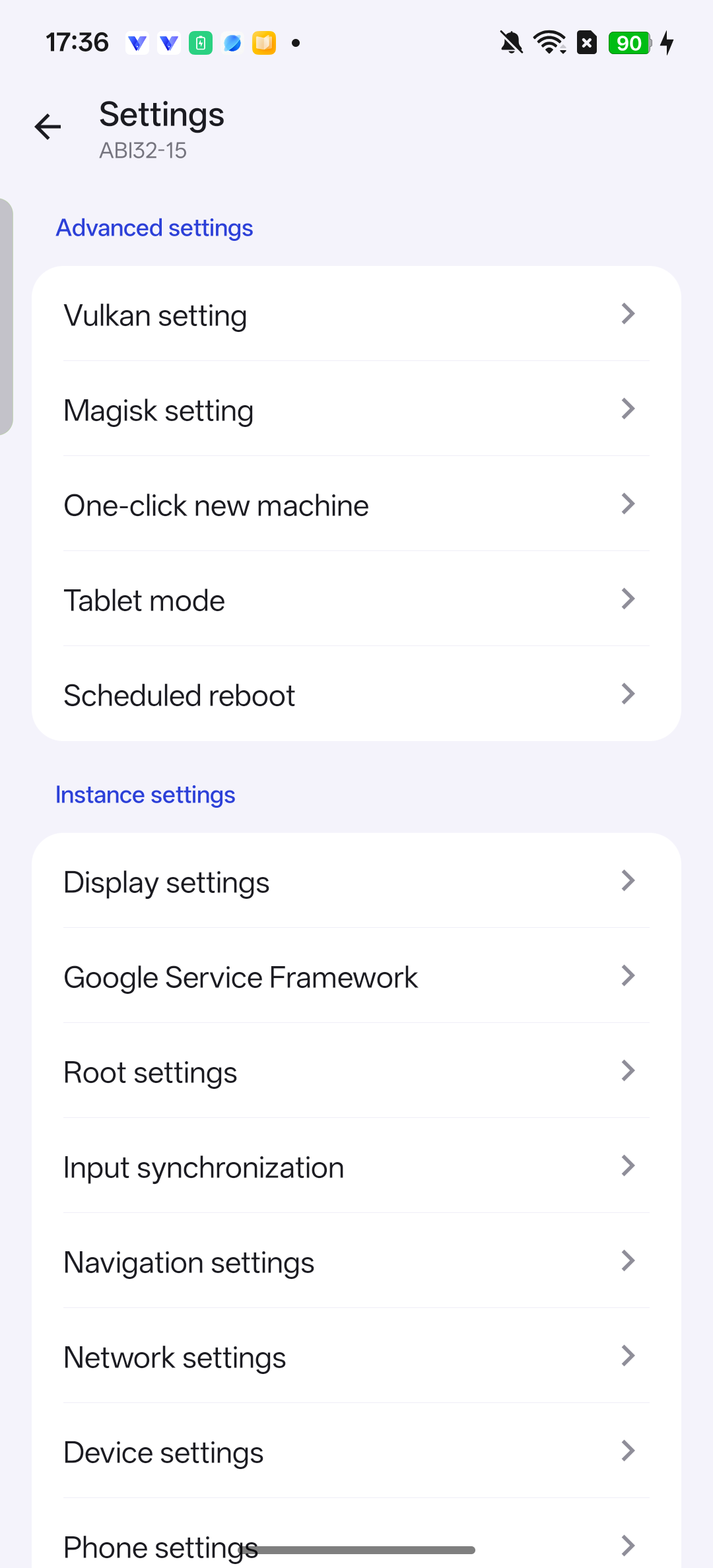
Check the virtual machine name, then open Device settings. Adjust external input switches
Instances → target virtual machine settings → Device settings
If you only need touch input and the keyboard is still missing, open the target virtual machine’s Device settings. Note the original values of Enable external keyboard and Enable mouse, then turn off the support you do not need. If the first change prompts a restart, choose Restart later and finish any other necessary changes before restarting.
Check the result Unneeded external input support is off, and you have noted the original values.
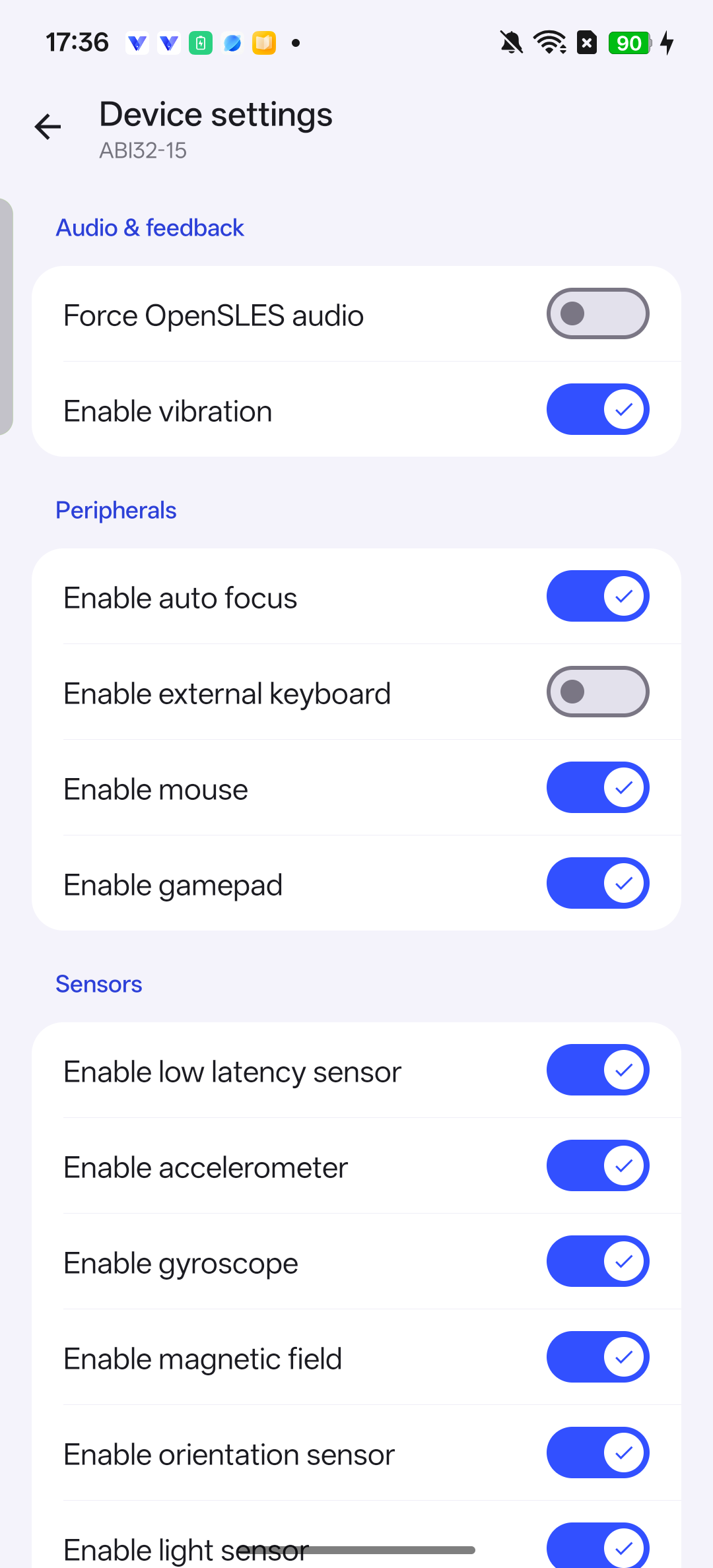
Adjust Enable external keyboard and Enable mouse as needed. Restart the same virtual machine and test typing
Restart prompt; or Instances → same virtual machine → stop, then start
Choose Restart now when prompted. If the prompt is no longer open, save your work, leave fullscreen, stop the virtual machine and wait for it to stop, then start the same virtual machine. After its desktop appears, open the original app and test a text field. Restore the original input settings and restart again if the change does not help.
Check the result The text field accepts input, or you have restored the original settings and recorded the remaining issue.
Hide or restore the floating control
This changes the app’s global navigation settings.
Open navigation settings
VPhoneOS → Settings → Navigation settings
Return from the fullscreen virtual machine to VPhoneOS, open Settings in the bottom navigation, then open Navigation settings.
Check the result The Enable float ball switch is visible.
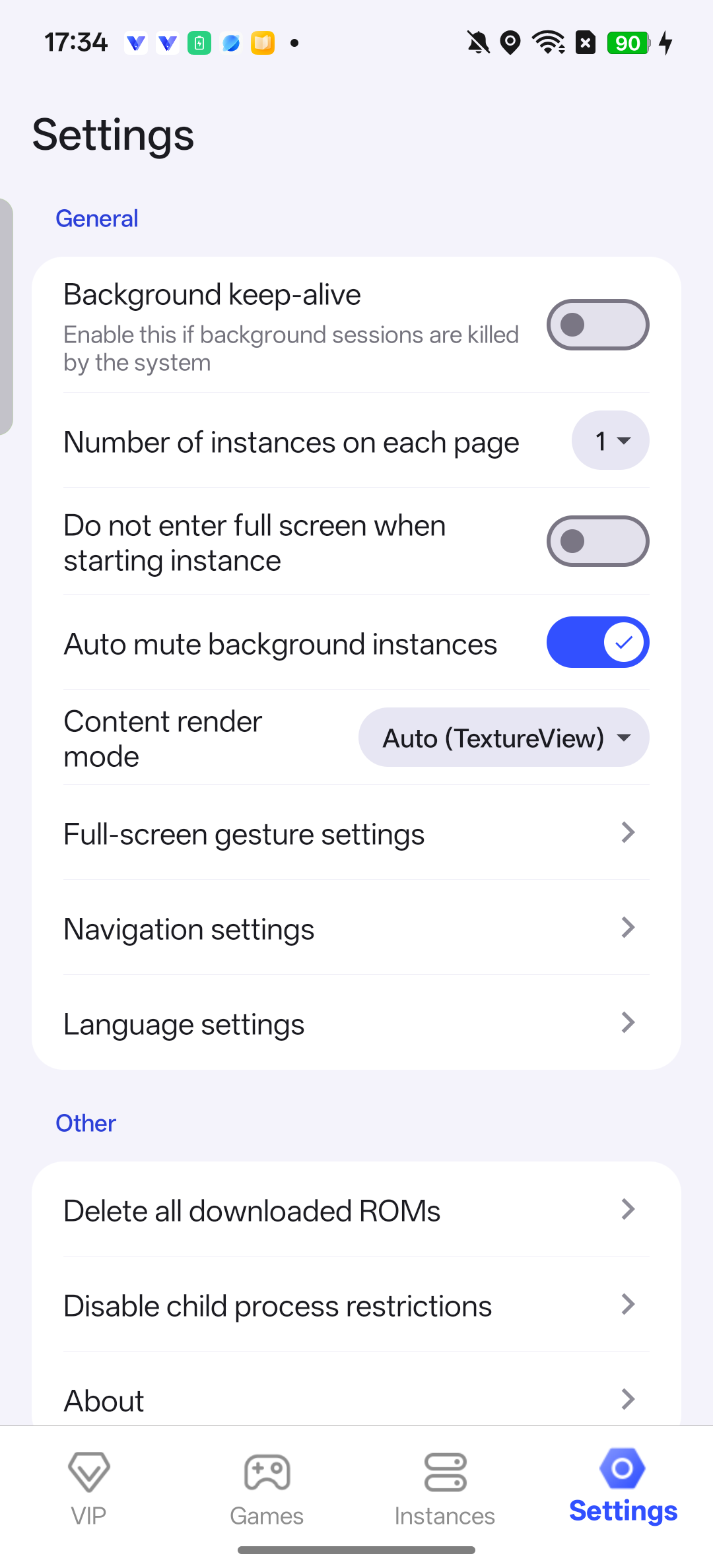
Open Navigation settings from Settings in the VPhoneOS app. Turn the floating control off or on
Navigation settings → Enable float ball
Turn off Enable float ball to hide the floating control. Return to the same page to turn it on again, then check it in the virtual machine. Before hiding it, make sure you can use your phone’s navigation controls to return to VPhoneOS and open its settings.
Check the result The floating control is shown or hidden as selected.
If Override global settings is enabled for this virtual machine, adjust Enable float ball in that virtual machine’s Navigation settings.
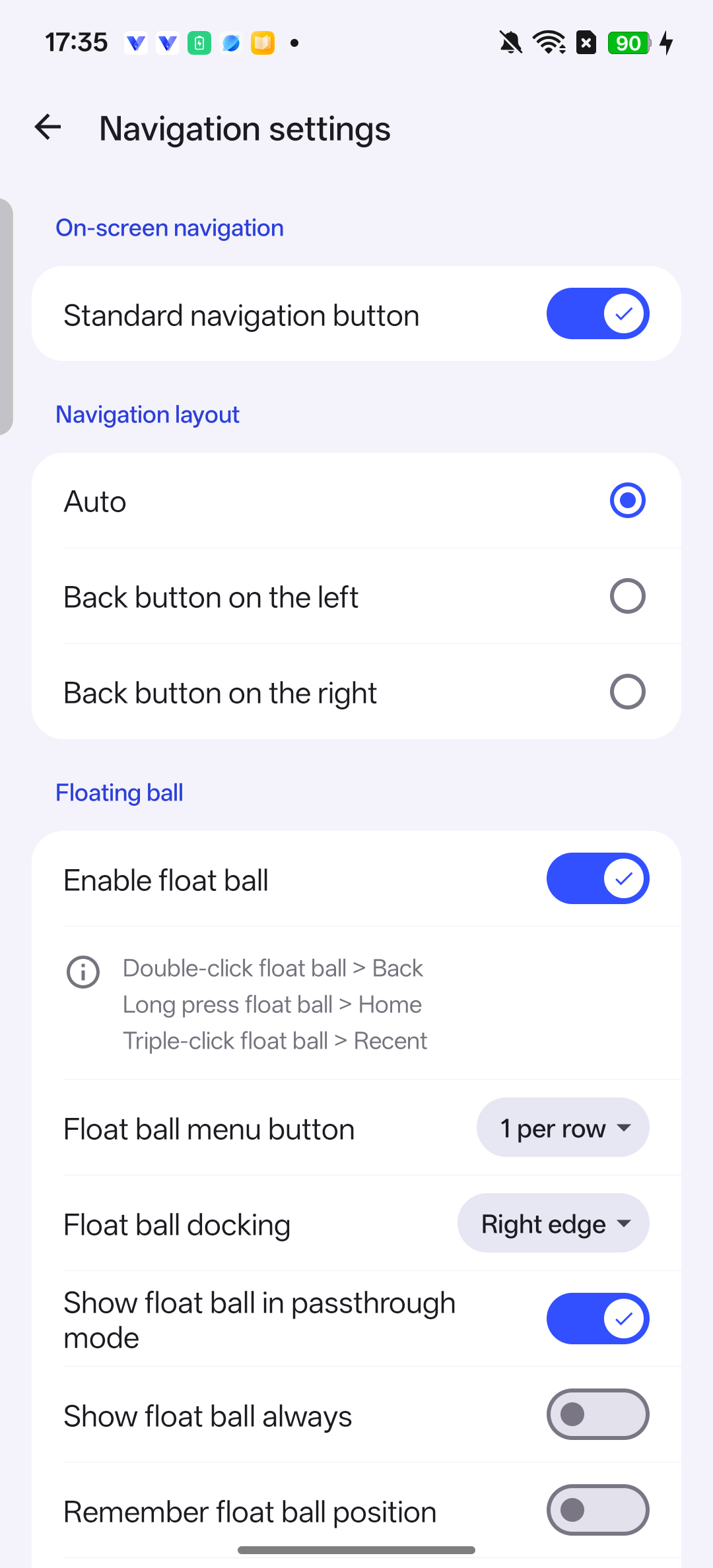
Enable float ball is in the global Navigation settings.
Adjust slow or choppy graphics
Record the original values and compare the same app and scene.
Open the target virtual machine’s display settings
Instances → target virtual machine settings → Display settings
Save your progress and open Display settings for the target Android virtual machine. Note the original values of Use cpu big cores to render and Max FPS.
Check the result You have identified the virtual machine and recorded both original values.
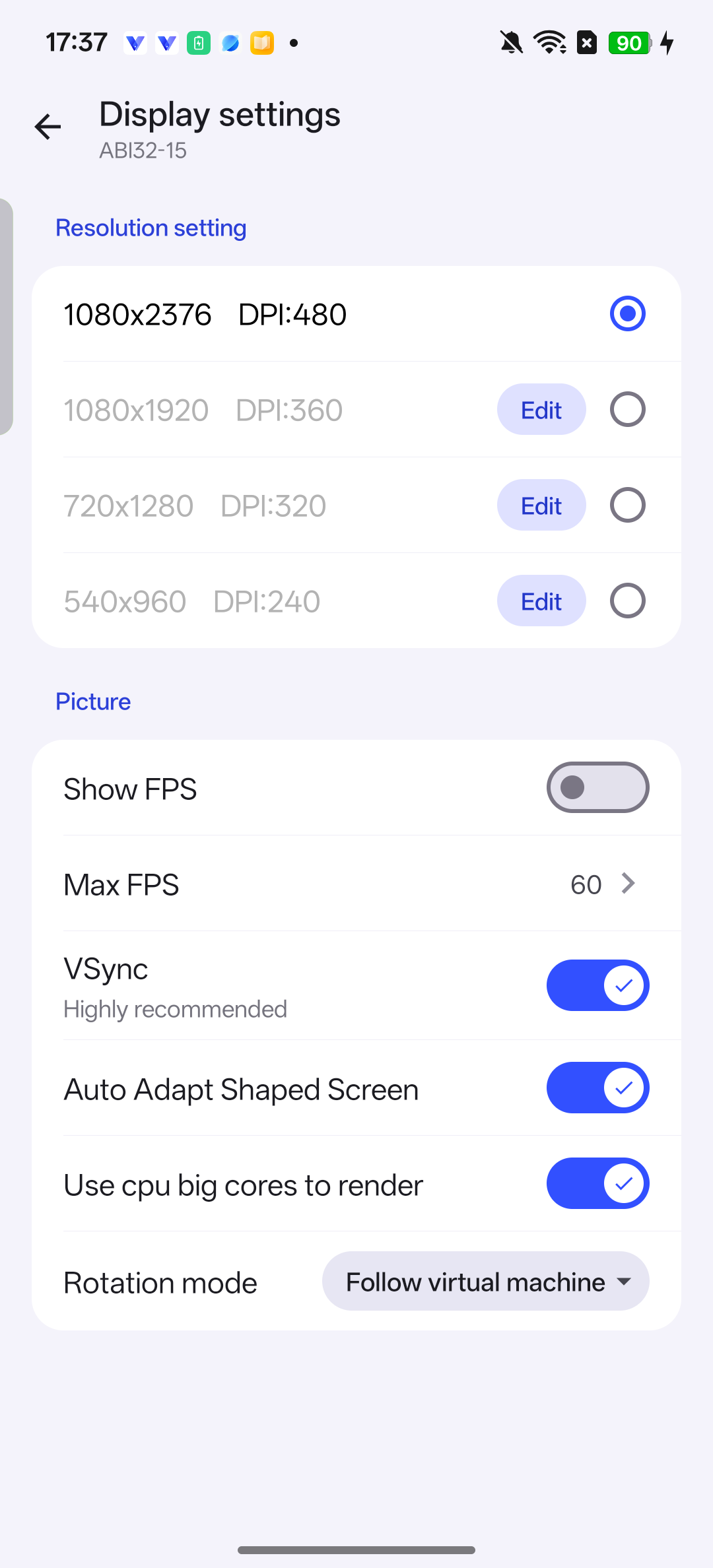
Note the original Max FPS and big-core settings before changing them. Choose settings for one or several virtual machines
Display settings → big-core switch / Max FPS
For multiple virtual machines, try turning off Use cpu big cores to render and lowering Max FPS to 30. For smoother motion in a single virtual machine, try enabling big cores and a supported value of 60. Open Max FPS, enter the value and confirm. If the phone reports that it is unsupported, cancel that value and use a supported setting.
Check the result The chosen values are displayed without forcing an unsupported refresh rate.
When changing several items, choose Restart later until the changes are complete, then restart once. These are settings to compare, not a speed guarantee for every phone.
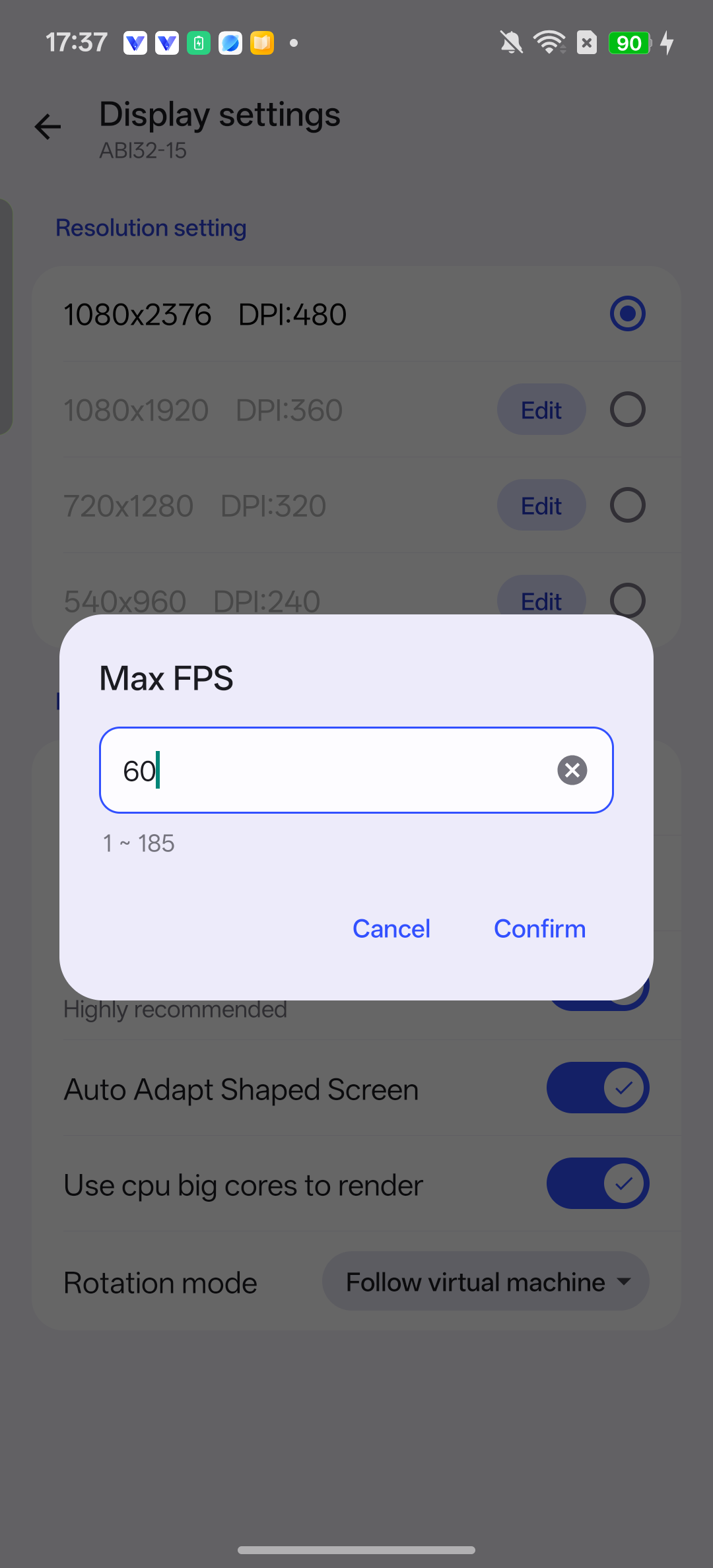
Enter a supported value in Max FPS and confirm. Restart and compare the result
Same virtual machine → restart → original app and scene
Restart the same virtual machine as prompted. If no prompt is open, stop it, confirm that it has stopped, then start it again. In the original app, compare the same scene for motion, responsiveness and heat. Restore the recorded values and restart if the change does not help.
Check the result You have compared the result and kept the suitable settings or restored the originals.