What does a backup save?
This guide has verified backup and restore on the same phone; restore to a different phone has not yet been verified. Save your work and stop the virtual phone before backing up. After restoring, check apps and important files. The Android version and 32-bit, 64-bit or Mixed architecture do not change.
To restore on another phone, the new phone and app version must support the backup’s Android version and its 32-bit or 64-bit app type. Keep the data on your old phone until you have checked the restored copy.
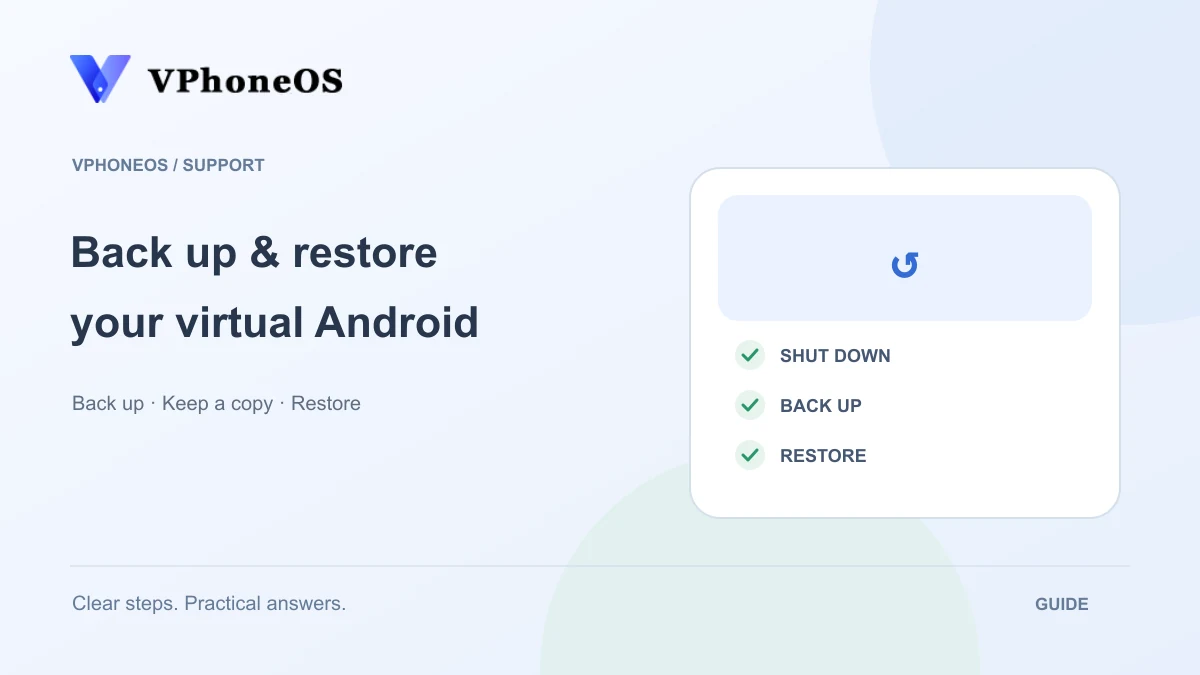
Create a backup
- Save your work in the virtual phone. Return to the Instances list on your phone, check that you have selected the right one, and stop it.
- Open its settings and choose Instance backup. Here, an instance means one virtual phone. Allow file access when asked and wait for the backup size to appear.
- Choose a save location and file name. Make sure there is enough free space. The file selection screen may differ by app version.
- Wait for the backup-success message, note the location and check that the files are there. If the backup is split into several files, keep all of them.
Restore a backup
- Keep the original virtual phone and backup. On the creation screen, choose the restore option. Select the backup folder or complete backup as the screen requests, and allow file access if asked.
- Wait for it to finish, then open the restored virtual phone. Check your apps and important files, and try using them.
- Some apps may ask you to sign in again. Restoring a backup does not automatically bring across accounts on your phone, Premium access or files outside the virtual phone.
- Keep the original virtual phone and at least one backup until you have checked that the restored copy works.