Check your phone before starting
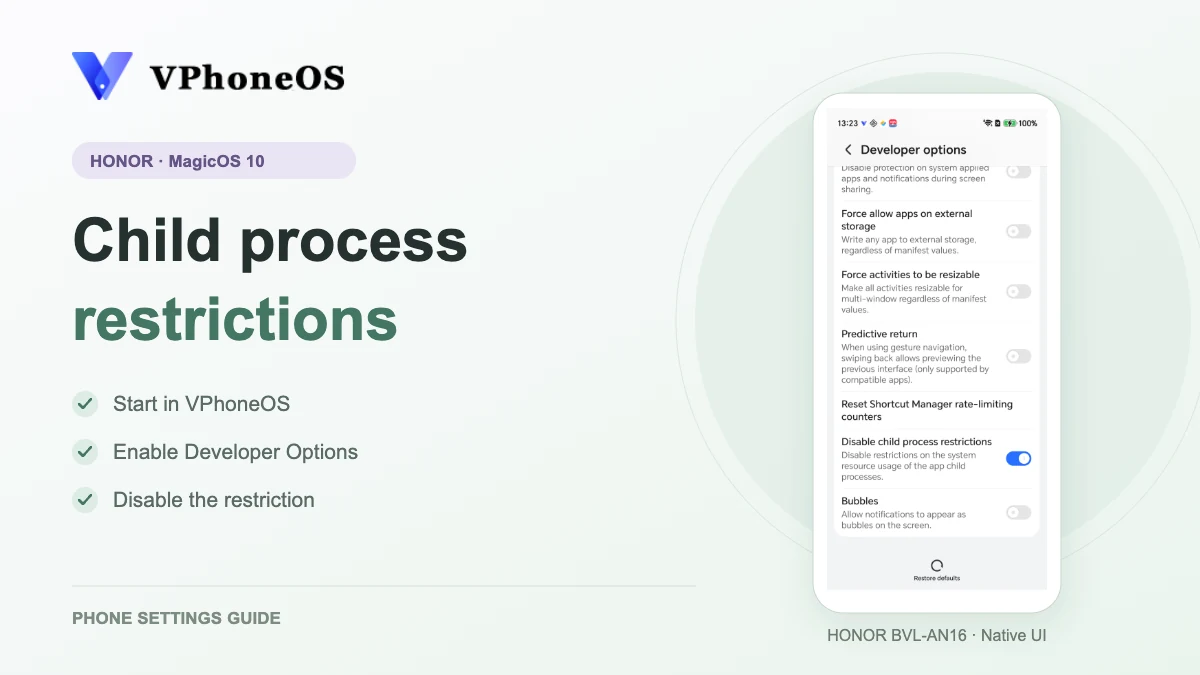
If VPhoneOS reports child process restrictions on HONOR, use the pictured steps to open developer options and find the appropriate switch. Recheck VPhoneOS afterward. Do not confuse this with limiting all background processes; error 62 can have other causes.
Child processes are extra tasks started by the virtual machine. If your phone limits these tasks, the virtual machine may close. To turn off this limit, turn ON Disable child process restrictions. This guide uses a HONOR BVL-AN16 with MagicOS 10 (Android 16) and the Android 14+ tab in VPhoneOS. Use your phone’s own settings. If Developer options is already on, skip the steps to enable it.
Follow these steps
Start with the guide in VPhoneOS, then check your phone’s settings in order.
Open the guide in VPhoneOS
VPhoneOS → Settings → Other → Disable child process restrictions
Open VPhoneOS and tap Settings in the bottom navigation. Under Other, tap Disable child process restrictions. Check that Android 14+ is selected on the guide page.
Check the result The page shows steps for Developer options and child process limits.
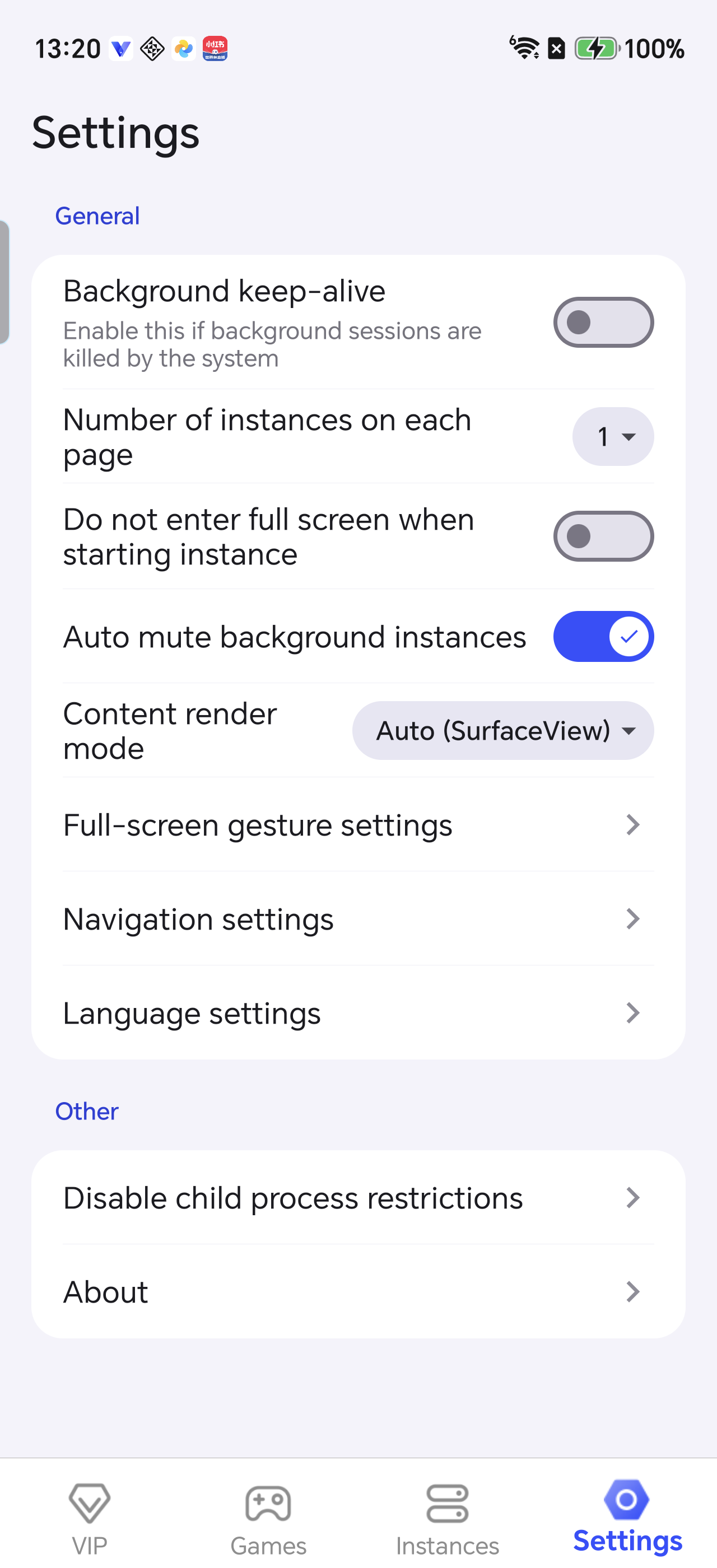
In the VPhoneOS Settings tab, open Disable child process restrictions under Other. First-time setup: open About phone
Phone Settings → About phone
Return to the phone home screen and open the phone’s Settings app. Scroll down and tap About phone.
Check the result The About phone page opens.
If Developer options is already enabled, skip ahead to Open Developer options.
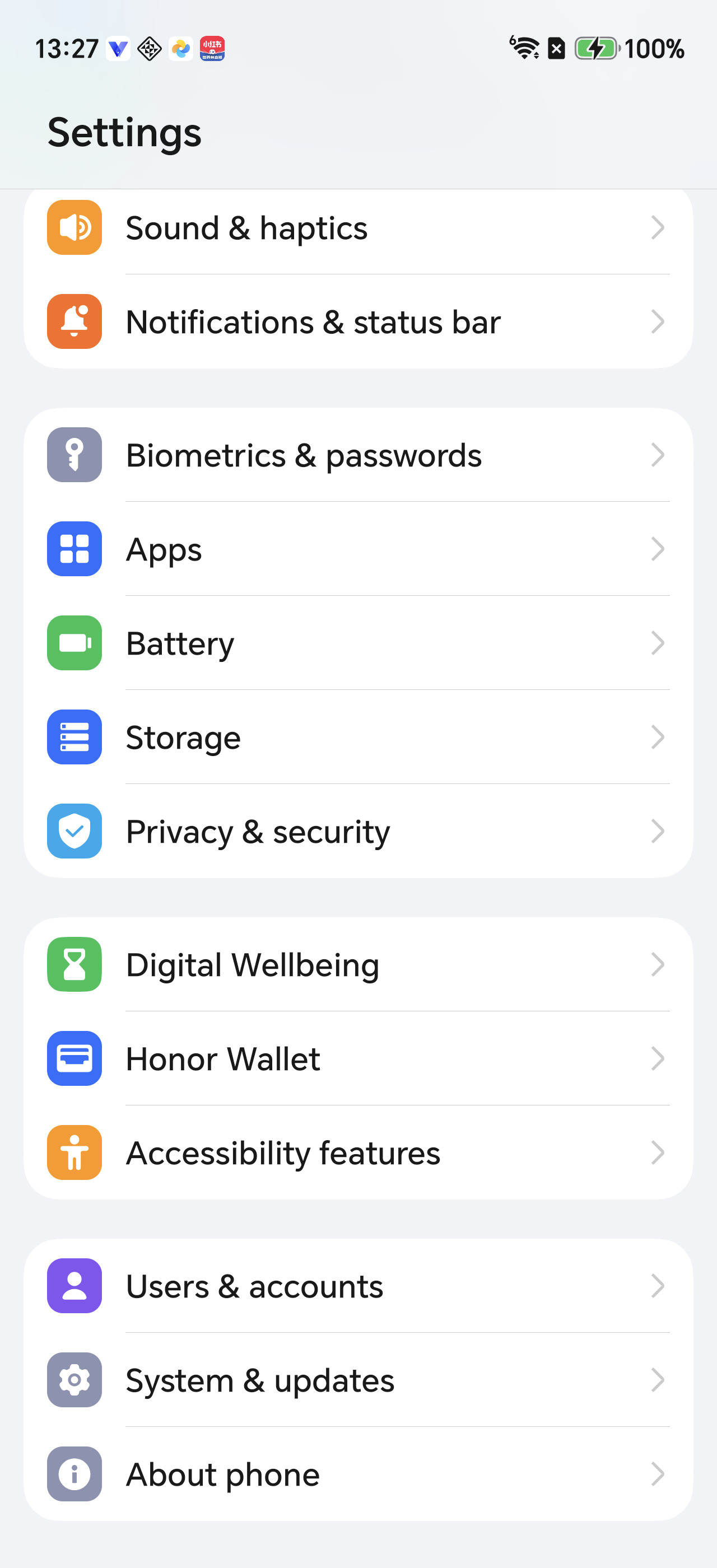
Scroll down in phone Settings and tap About phone. Tap Build number seven times
About phone → Build number
Scroll down in About phone, find Build number as shown, and tap it seven times. If the phone asks you to verify, enter your screen-lock password as prompted. If it says you are already in developer mode, continue to the next step.
Check the result After verification or a message that developer mode is enabled, continue below to check the new entry.
Use Build number, not MagicOS version or Android version.
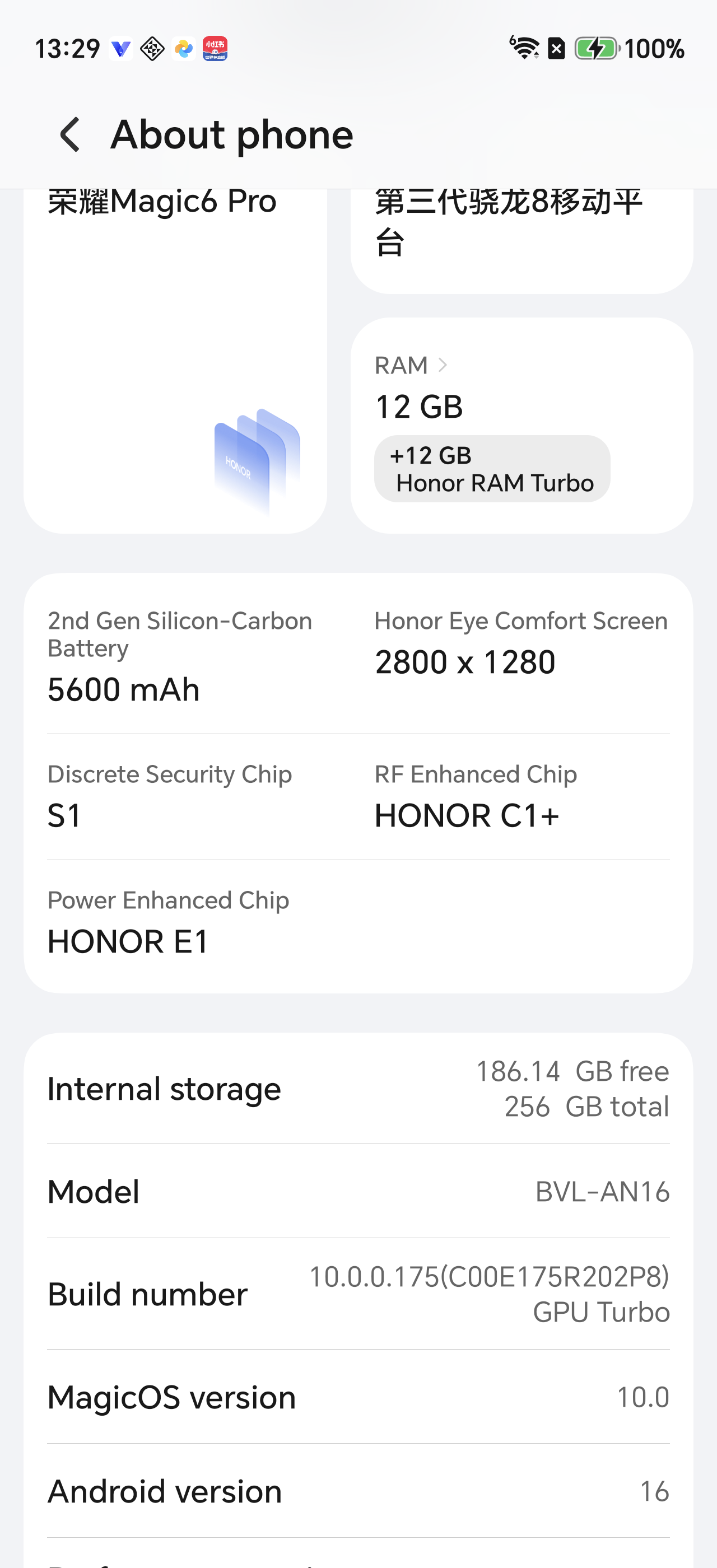
Tap Build number seven times, not MagicOS version or Android version below it. Open Developer options
Phone Settings → System & updates → Developer options
Return to phone Settings, tap System & updates, then tap Developer options.
Check the result The Developer options page opens.
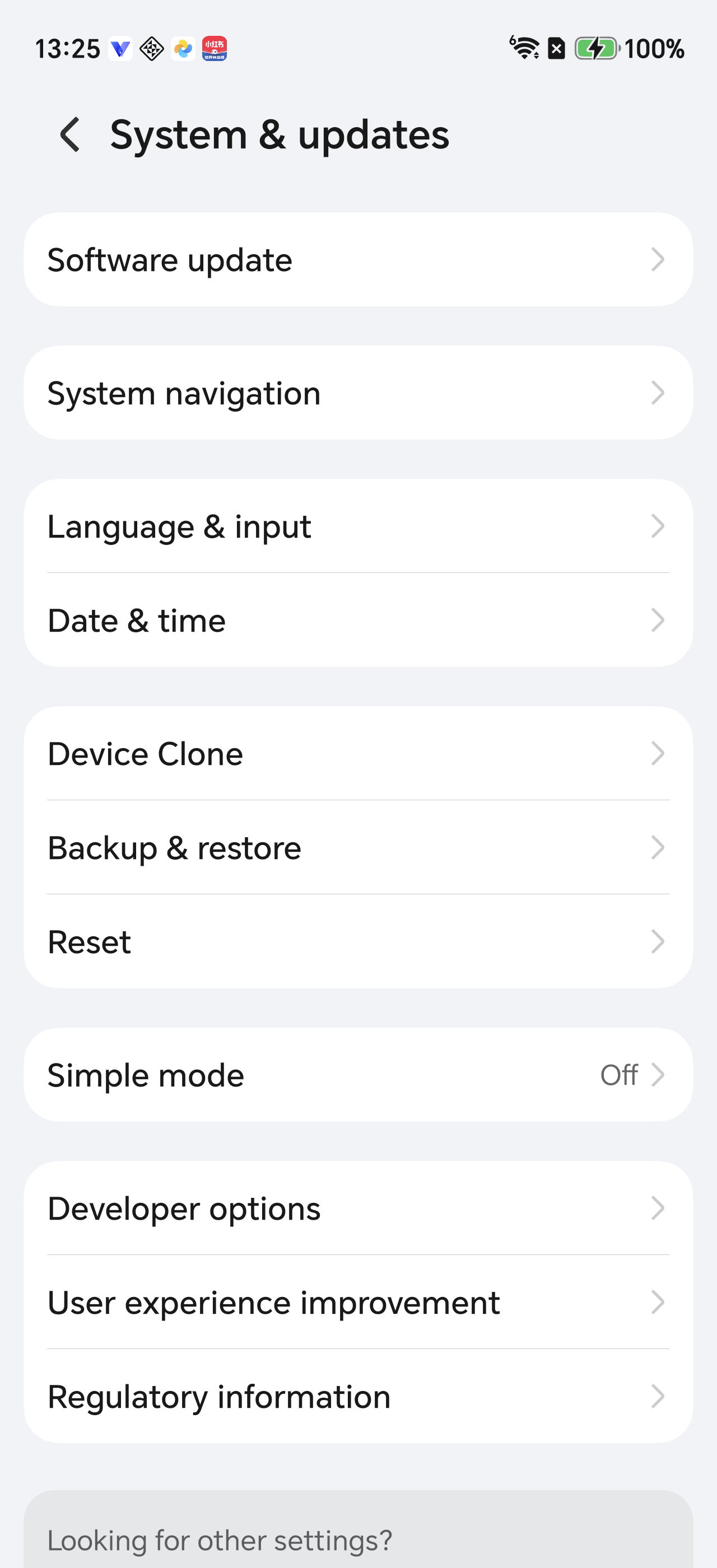
Open Developer options under the phone’s System & updates settings. Check the Developer options master switch
Developer options → Master switch at the top
Check the Developer options switch at the top. Turn it on if it is off; leave it on if already enabled. Then switch back to VPhoneOS and continue below.
Check the result The master switch at the top is on.
This guide does not require USB debugging or wireless debugging.
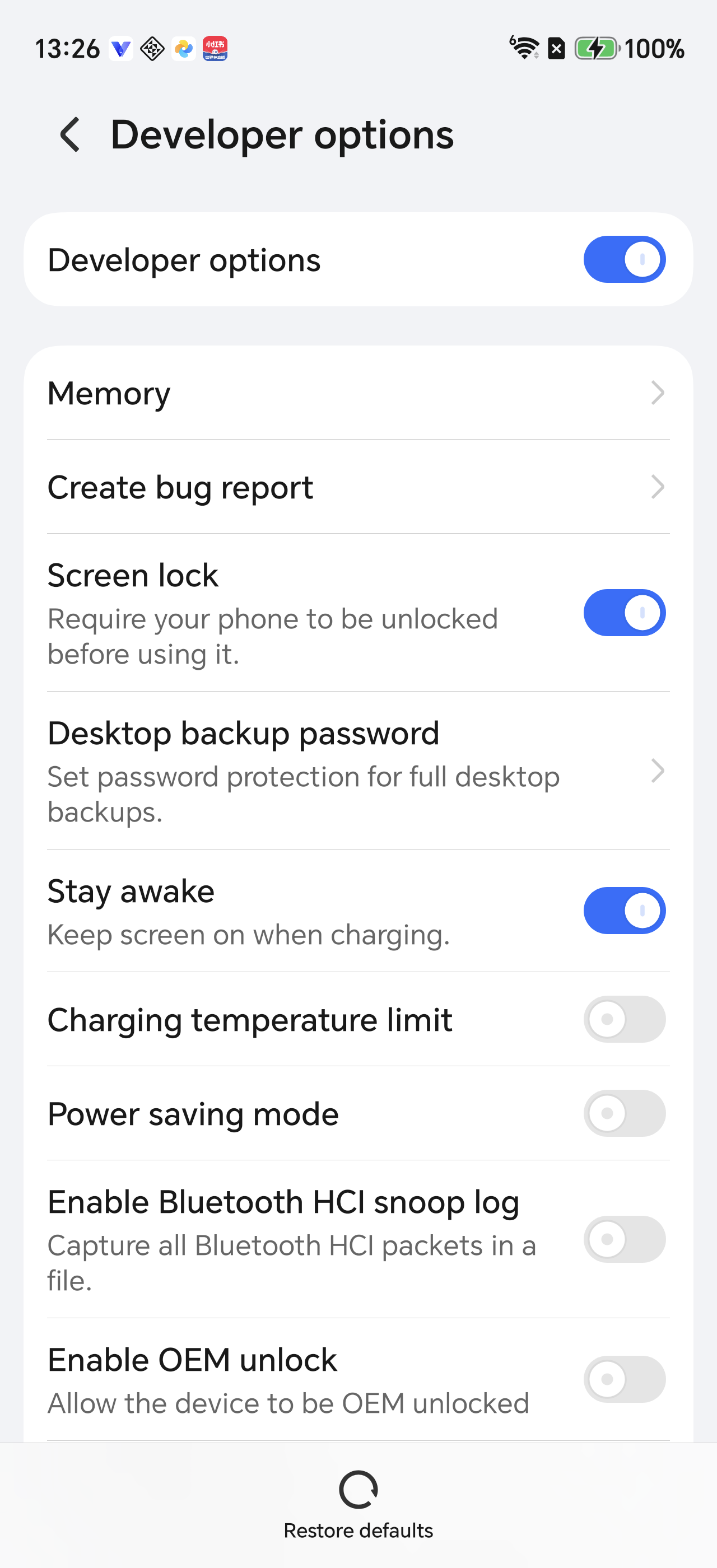
Check the Developer options master switch at the top. Blue means it is on. Turn on Disable child process restrictions
Second OPEN button in the guide → Developer options → Disable child process restrictions
Return to the VPhoneOS guide and tap OPEN beside its second item. In the phone’s Developer options, find Disable child process restrictions. Turn it on if it is off; otherwise leave it on.
Check the result Disable child process restrictions is on.
Background process limit and Don’t keep activities are different settings. Do not use them instead.
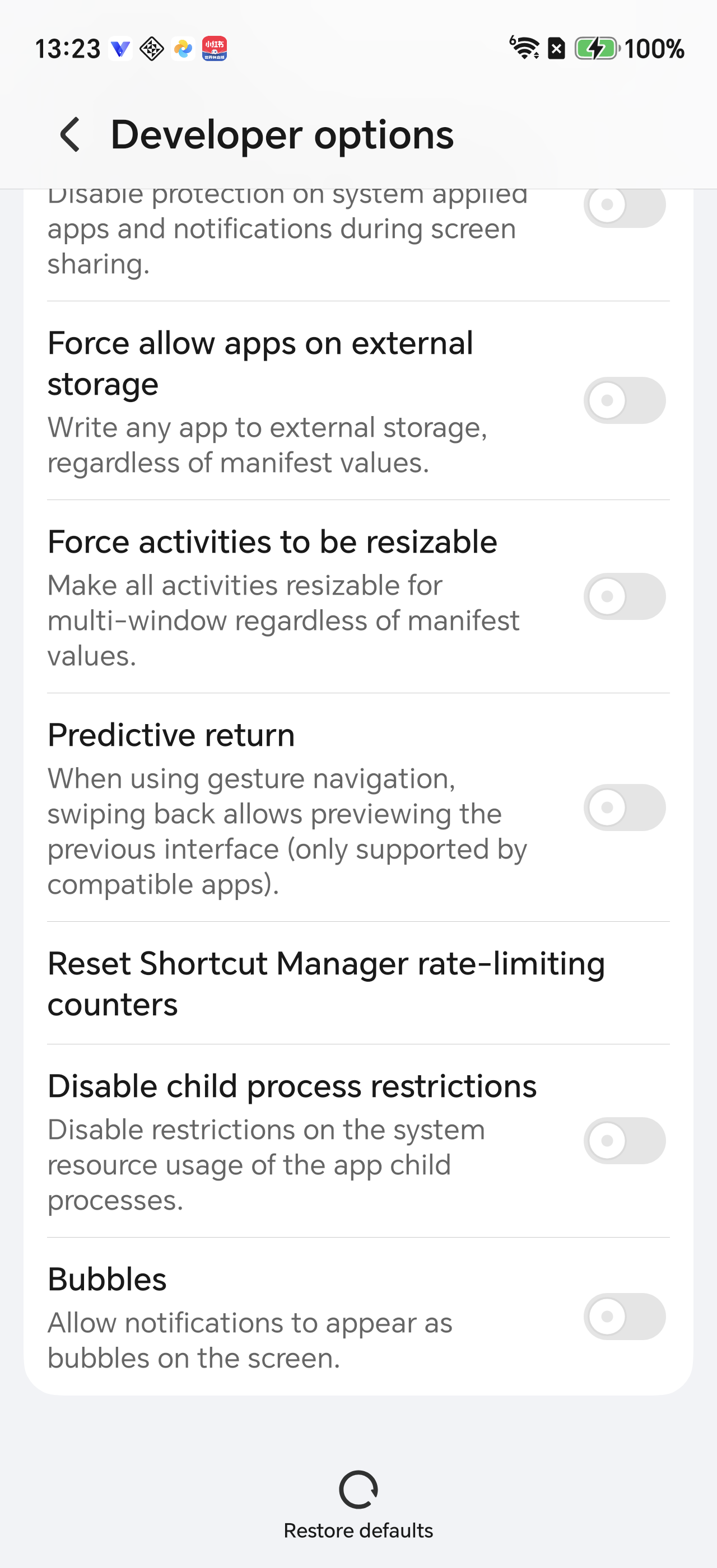
Disable child process restrictions is off here. Turn it on; if yours is already on, leave it on. 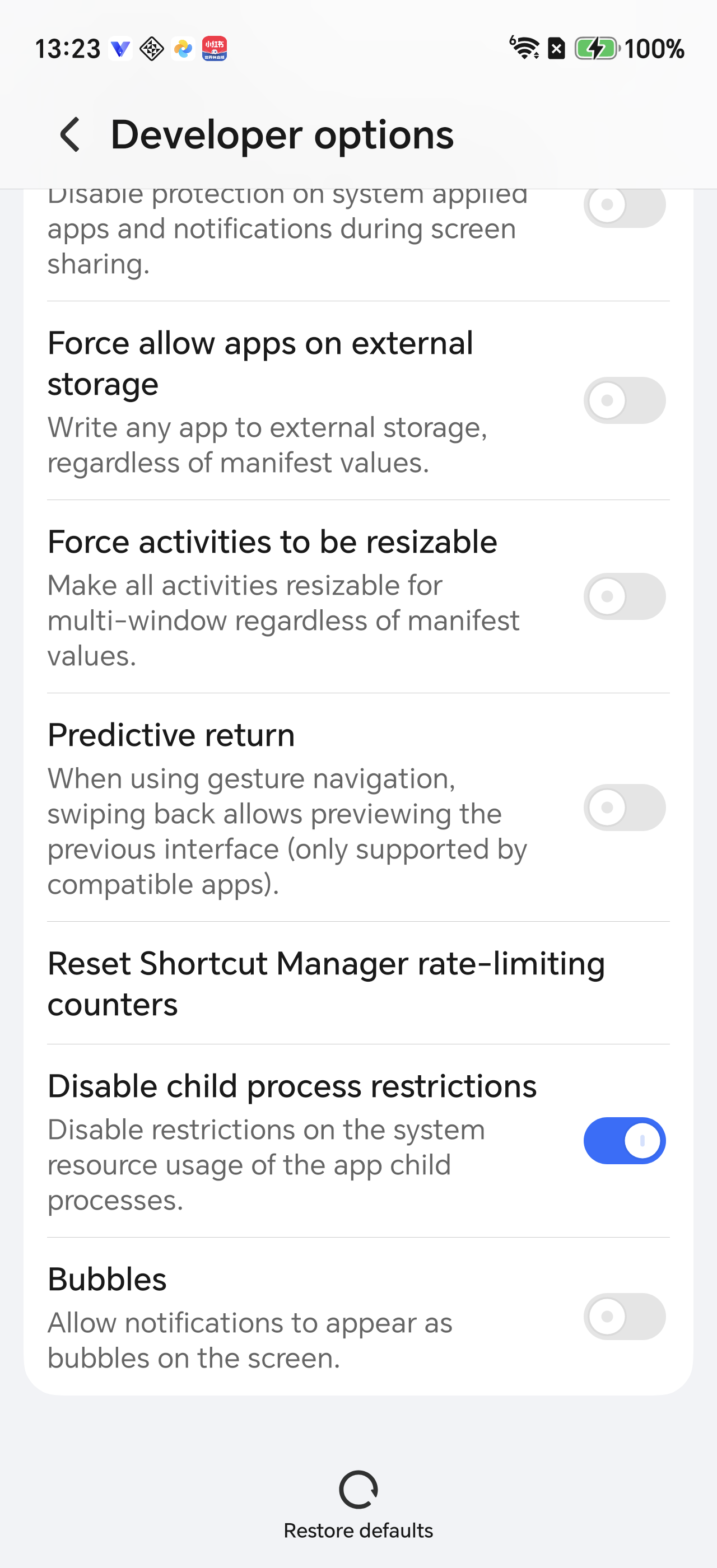
The blue Disable child process restrictions switch is on. Return to VPhoneOS and check the result
VPhoneOS guide → Complete → Success and enter VPhoneOS
Switch back to VPhoneOS through Recent apps. Check for green check marks and Complete, then tap Success and enter VPhoneOS at the bottom to finish the guide. If setup remains incomplete, recheck this switch in the phone’s settings.
Check the result The setup guide closes and you return to VPhoneOS.
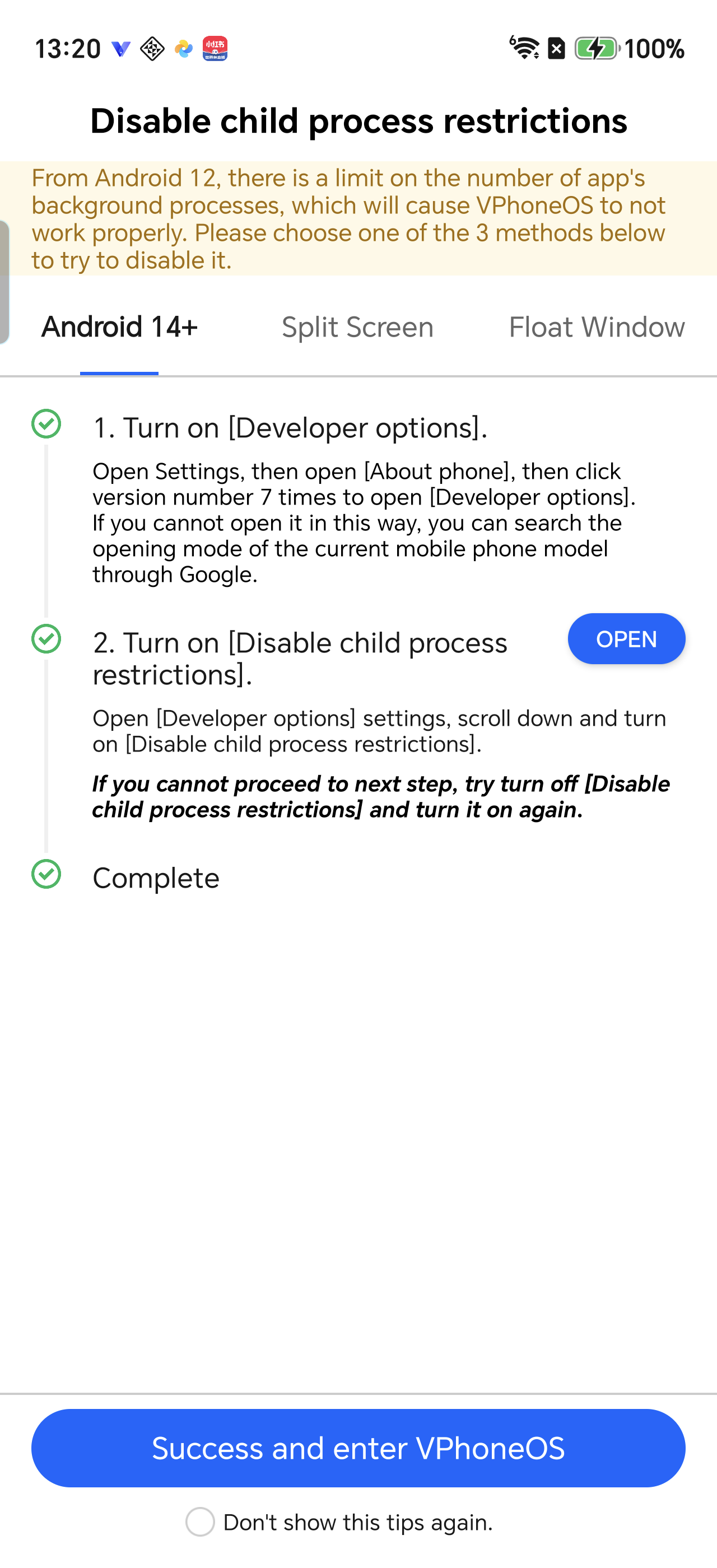
Check the green marks and Complete, then tap Success and enter VPhoneOS at the bottom to return to the app.
Frequently asked questions
Why turn the switch on to remove a limit?
The switch is named Disable child process restrictions. Turning it on turns the limit off. Background process limit is a different setting; leave it unchanged.
Do I need USB or wireless debugging?
No. This guide uses a switch in your phone’s settings. You do not need a PC, device pairing or debugging commands.
What if I cannot find this switch?
Check that Developer options is enabled on your phone, then scroll down and look for the full setting name. Other MagicOS versions may move or omit it. Follow the method shown for your phone in VPhoneOS. Do not use Background process limit instead.
Can the virtual machine still close after this?
Yes. This setting only changes child process limits. Low memory, battery or network settings, and problems in the app can still interrupt your task. Also check the background-running guide and test the task you want to keep running.