Use the account that already has VIP
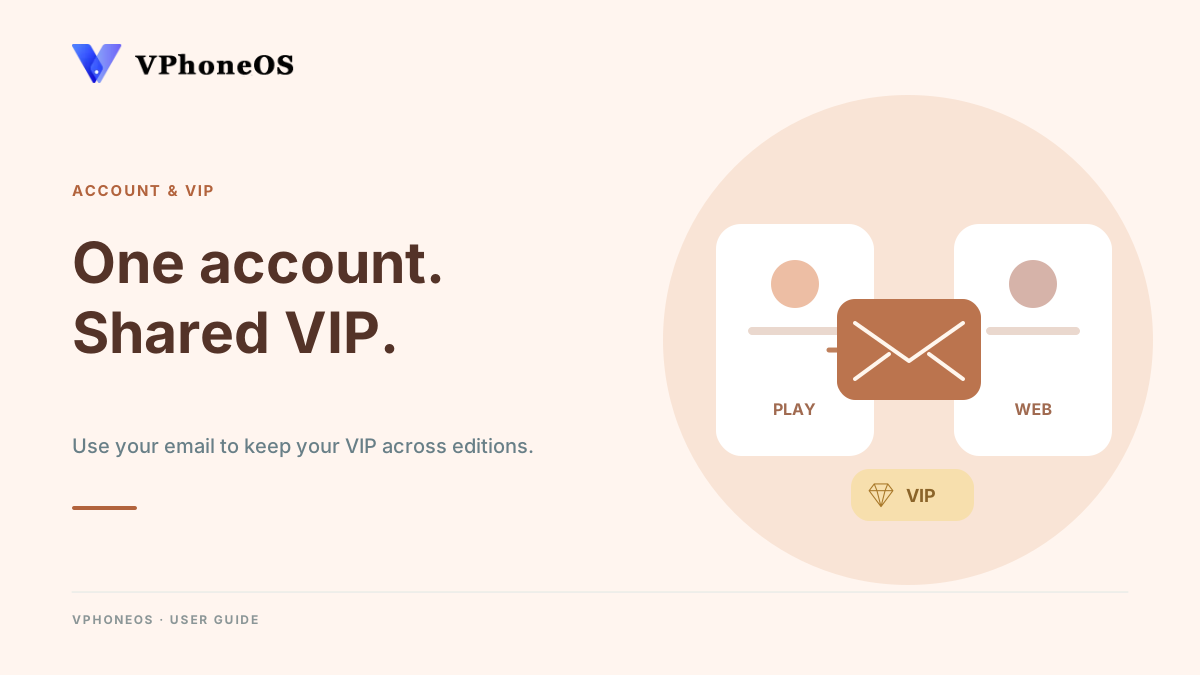
If you already sign in to VPhoneOS by email, use the same email and password in the website version. If you sign in with Google, link a login email to that existing account first. An active VIP membership is shared; virtual phones and files are not copied by signing in.
The screenshots use example details: VPhoneOS, vphone@vphoneos.com and UID 12345678. Use your own account and email. The sample account shows Non-VIP; it is used to show where the settings are.
Your virtual phone data is separate
Signing in shares your account and VIP. It does not copy your virtual phones, apps or files. To move that data, follow the backup and restore guide.
Link your email and use it in the website version
Check your original account
Google Play version → VIP → profile avatar
Open VIP in the Google Play version. Make sure you are signed in to the account that has your existing membership, then tap the profile avatar to open Account information. Check Account type and Linked email.
Check the result If Account type is Google and Linked email says Not linked, continue to step 2. If an email is already listed, use that email and go to step 4.
If Account type is Email, use that same email account in the website version. You do not need to link it again.
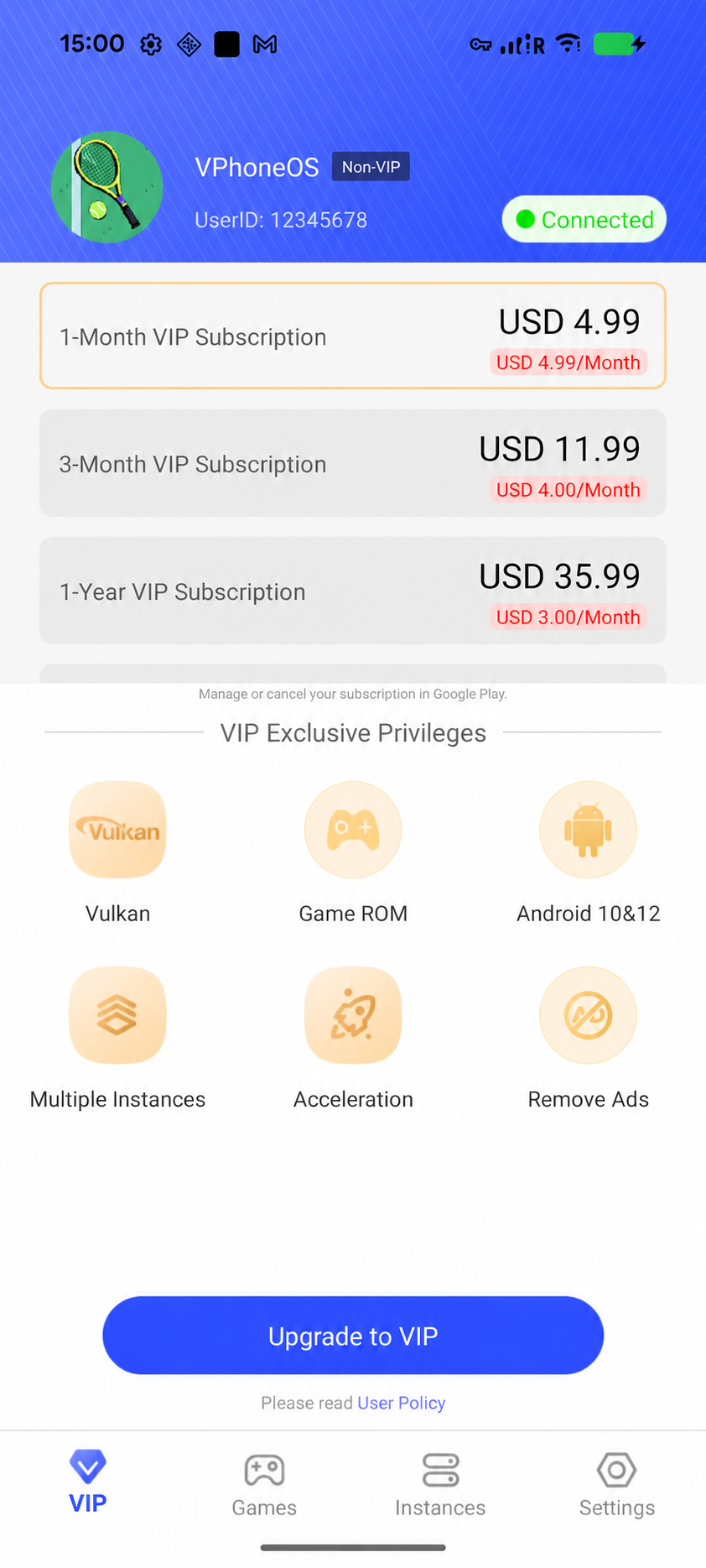
Google Play version on Pixel 8. Tap the profile avatar to open Account information. This demo account has no active VIP. 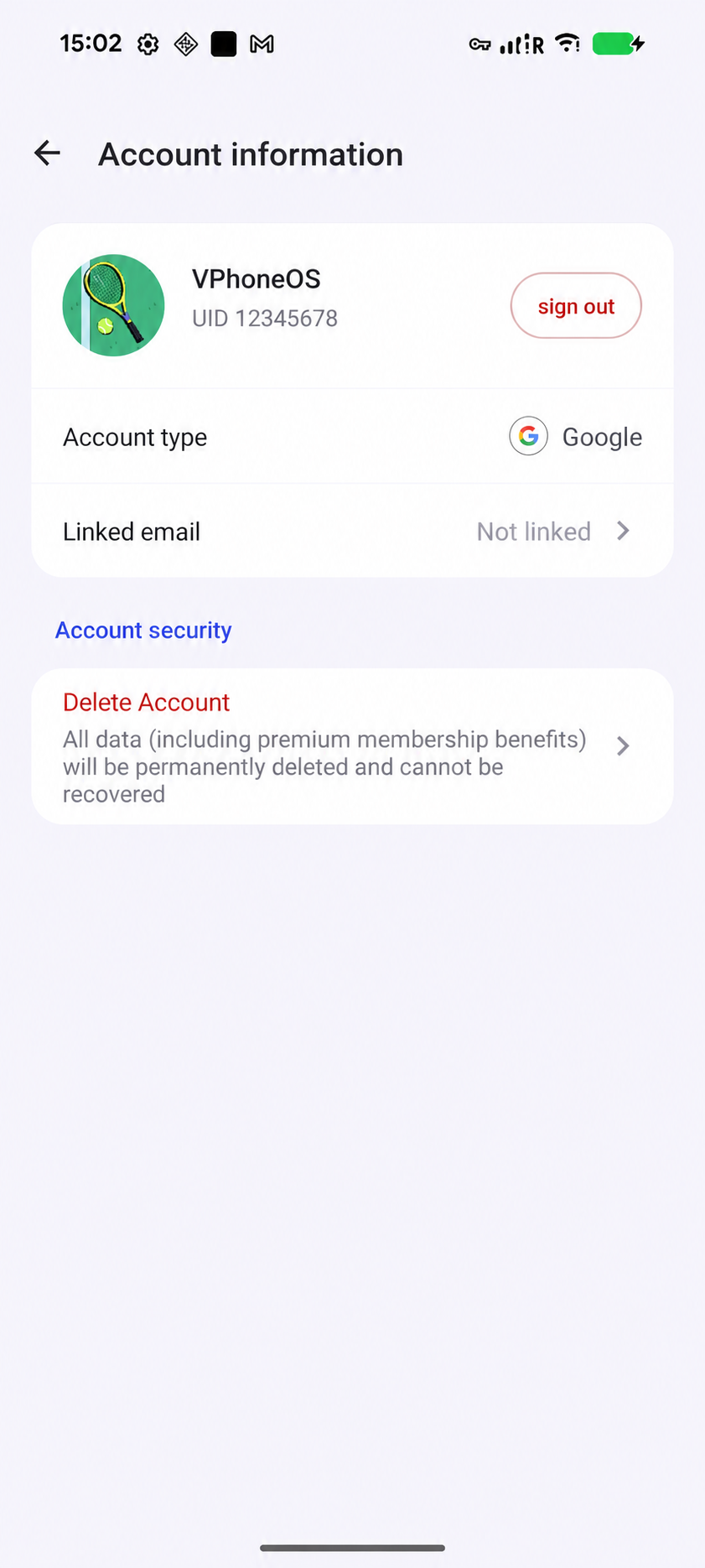
Account type is Google and Linked email is Not linked. The name and UID are example details. Link your email
Account information → Linked email → Not linked
Tap Linked email to open Bind email. Enter an email address you can access. Set a VPhoneOS password for it, or enter the password if that email already has a VPhoneOS account. Type the characters shown in the verification image, then tap Bind login email.
Check the result After the request succeeds, the Verify email dialog asks for the code sent to your email. Linking is not complete yet.
Use a VPhoneOS password here, not the password for your email inbox. The address vphone@vphoneos.com in the screenshot is an example; enter your own address.
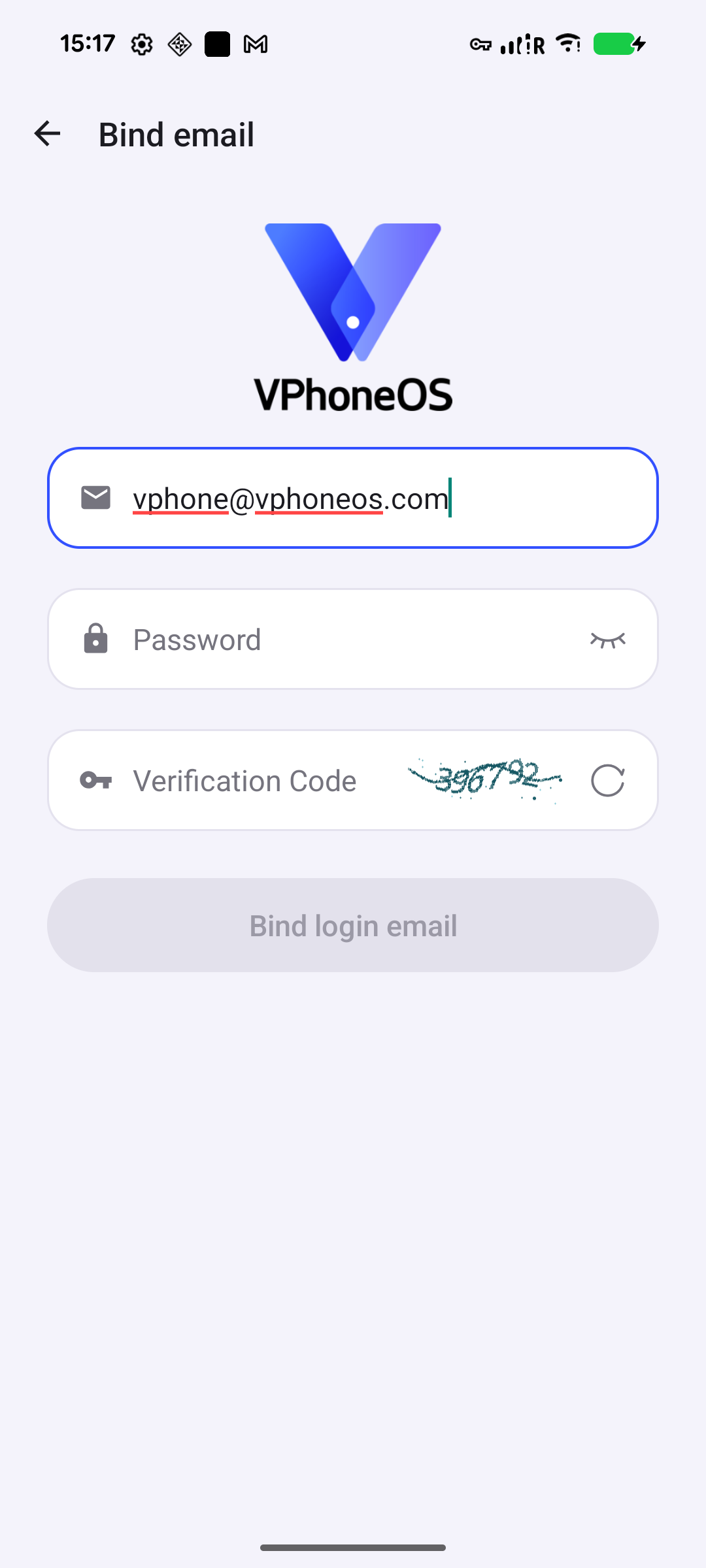
Enter your own email, a VPhoneOS password and the code from the verification image. The displayed email is an example. Verify and check your linked email
Verify email → six-digit email code → Send
Open your email inbox and find the six-digit code from VPhoneOS. Enter that code in the Verify email dialog and tap Send to confirm it. After the app reports success, return to Account information and check that Linked email shows the address you entered.
Check the result Continue only when your correct email address appears under Linked email.
This code comes from your inbox. It is different from the verification image you entered in the previous step. If no email arrives, check your spam folder and confirm the address you entered.
Sign in to the website version
Website version → VIP → Sign in
Download the website version from www.vphoneos.com and open it. Tap VIP, then Sign in to open the email login page. Enter your linked email and its VPhoneOS password. Fill in the verification image, read and accept the agreement, then tap Login. If you already used email sign-in in the Google Play version, use that same email and password.
Check the result The website version is signed in with the email account you checked or linked above.
If the app says the two versions cannot run at the same time, fully exit both versions, then open only the version you want to use. You do not need to uninstall either app or clear its data.
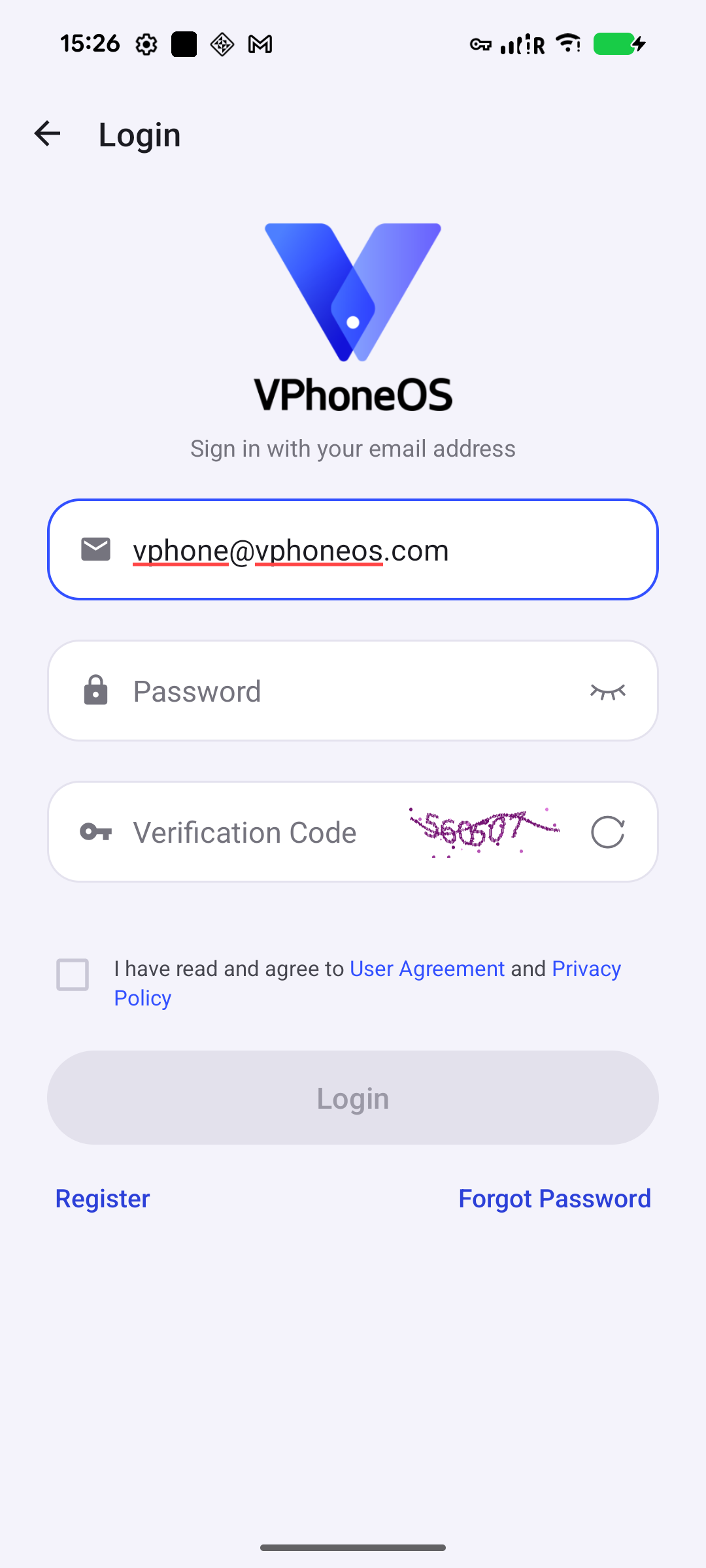
Website version: sign in with your linked email and its VPhoneOS password. Check your VIP
Website version → VIP
Open VIP in the website version and check your membership status. If your original Google Play account has an active VIP, its access should be available after you sign in with the linked email.
Check the result Your existing VIP is available in the website version. If it is missing, check the linked email and sign-in account before buying anything else.
Using the same display name is not enough. Use the exact email account linked to the Google Play account that holds your membership.
Frequently asked questions
I already sign in by email. Do I need to link it again?
No. Sign in to the website version with the same VPhoneOS email and password. Email linking is only needed when you use Google sign-in and have no email linked yet.
Where is Bind login email?
In version 5.2.6, open VIP, tap your profile avatar, then tap Linked email when it says Not linked. The next screen has the Bind login email button. If Linked email already shows an address, use it without linking again. If Account type is Email, sign in to the website version with that email. Older versions may show Bind login email directly on the account page.
Which Verification Code should I enter?
On the Bind email form and the website version’s Login page, type the characters in the verification image beside the field. In the Verify email dialog that follows an email-linking request, enter the six-digit code sent to your inbox. The image code and email code are different.
What if the email is already used or the password is wrong?
If the email already has a VPhoneOS account, use that account’s VPhoneOS password. If the app still reports that the email is in use or cannot be linked, follow the message shown and contact support through Settings → About → Discord. Do not unlink another account just to try again.
What if my VIP does not appear?
Check that the original Google Play account still has an active VIP and that you signed in to the website version with its linked email. Also check your network connection. If VIP is still missing, follow the Google Play payment and account help. You do not need to buy VIP again just to use the website version.
What if the two versions cannot run at the same time?
Fully exit both VPhoneOS versions, then open only the version you want to use. This message does not require uninstalling an app or clearing its data.