Google Play and website versions at a glance
The Google Play version has root enabled by default, no Root or Magisk switches, and no support for VPN apps inside a virtual phone. The website version has both switches and in-VM VPN support. You can share VIP using the same linked email account.
If VIP is missing after a purchase, check the signed-in account and Google Play order before buying again. Use the questions below to find the next step.
Compare the two versions
| Feature or task | Google Play version | Website version (vphoneos.com) |
|---|---|---|
| Built-in root | Enabled by default; no Root switch | Includes a Root switch |
| Magisk settings | No Magisk switch; the absence of a switch does not mean Magisk cannot be installed | Includes a Magisk switch |
| VPN apps inside a virtual phone | Not supported | Supported |
| Share an existing VIP | Google sign-in: link a login email to the existing account. Email sign-in: use that same account directly | Sign in with the same VPhoneOS email and password; an active VIP is shared |
| Virtual phones, apps and files | Signing in does not copy them to the other version | Keep your original data and use a compatible backup separately |
Shared VIP does not copy your data
After linking your email, you can use the same account and VIP in the Google Play and website editions of VPhoneOS. Signing in does not copy your virtual machines, apps or files. Save your work and back up the data you need before changing editions.
Frequently asked questions
I already use an email account. Do I need to bind it again?
If you registered and signed in by email in the Google Play edition of VPhoneOS, use that same email account in the website edition. The Bind login email step is for Google sign-in accounts that do not yet have an email bound.
Where do I link an email, and what if the entry is missing?
Open your profile in the Google Play version and look for Linked email. If it says Not linked, tap it to open Bind email. If you already sign in to VPhoneOS by email, use that account directly in the website version. Screens can differ by app version; follow the illustrated account-sharing guide and use official support if the entry is still missing.
Why are there no Root or Magisk switches in the Google Play edition?
These switches are not included in the Google Play edition, and root is enabled by default. The edition downloaded from www.vphoneos.com includes both Root and Magisk switches. Use the website edition if you need to change these settings.
How do I turn off root in the Google Play edition?
The Google Play edition has root enabled by default and no switch to turn it off. Download the website edition from www.vphoneos.com and sign in with the same email account. In the virtual machine you want to change, open Settings → Root settings, turn off Enable root, then restart as prompted. This turns off built-in root only. If you have also installed Magisk, see the Magisk guide.
Can I use a VPN inside the virtual machine?
The Google Play edition does not support VPNs inside a virtual machine. Download the website edition from www.vphoneos.com to use a VPN there, then install and connect your VPN app inside the virtual machine.
I was charged or subscribed, but VIP is missing. What should I check?
Check that Google Play uses the Google account that made the purchase, and verify your VPhoneOS sign-in. On a stable connection, save your work, sign back in to the same VPhoneOS account and recheck VIP. If it is still missing, locate the order ID beginning with GPA and note the purchasing Google account email and your VPhoneOS sign-in method. Open Settings → About → Discord and ask official support how to share those details privately. Keep full order IDs and email addresses out of public reviews.
Where can I find my Google Play order?
In the Play Store, open your profile → Payments & subscriptions → Budget & history. In the Google payments center, use Activity for individual orders or Subscriptions & services for subscriptions. Your purchase-confirmation email also contains order information. If the purchase is absent, check any other Google account you may have used.
How do I request a Google Play refund?
Open Google's refund-request page with the purchasing account and follow its instructions for the order. If the guided flow cannot find it, Google's website order history provides Report a problem for submitting the request. Eligibility depends on Google's policy and the purchase details. The help page also links to request-status checks and explains when to contact the developer.
What should I do about Magisk's third-party su prompt?
You can ignore this popup. It does not affect the installation or use of Magisk. See the Magisk guide for the installation and setup steps.
How do I reach official Discord support?
In VPhoneOS, open Settings → About and follow the Discord link. Include the edition, app version, phone and virtual Android versions, steps to reproduce the issue, and the error text. For purchase issues, share order details privately as directed by support. Do not send passwords or verification codes.
Choose your sign-in route
Use your existing sign-in method
Google Play version → VIP → Sign in
If you are signed out, choose the method you already use for your VPhoneOS account. Email users can sign in to the website version with that same email and password. Google sign-in users need to check Linked email in their existing profile before switching versions.
Check the result You know whether your existing VPhoneOS account uses email or Google sign-in.
Use the account that holds your VIP. Creating a different account will not move the membership.
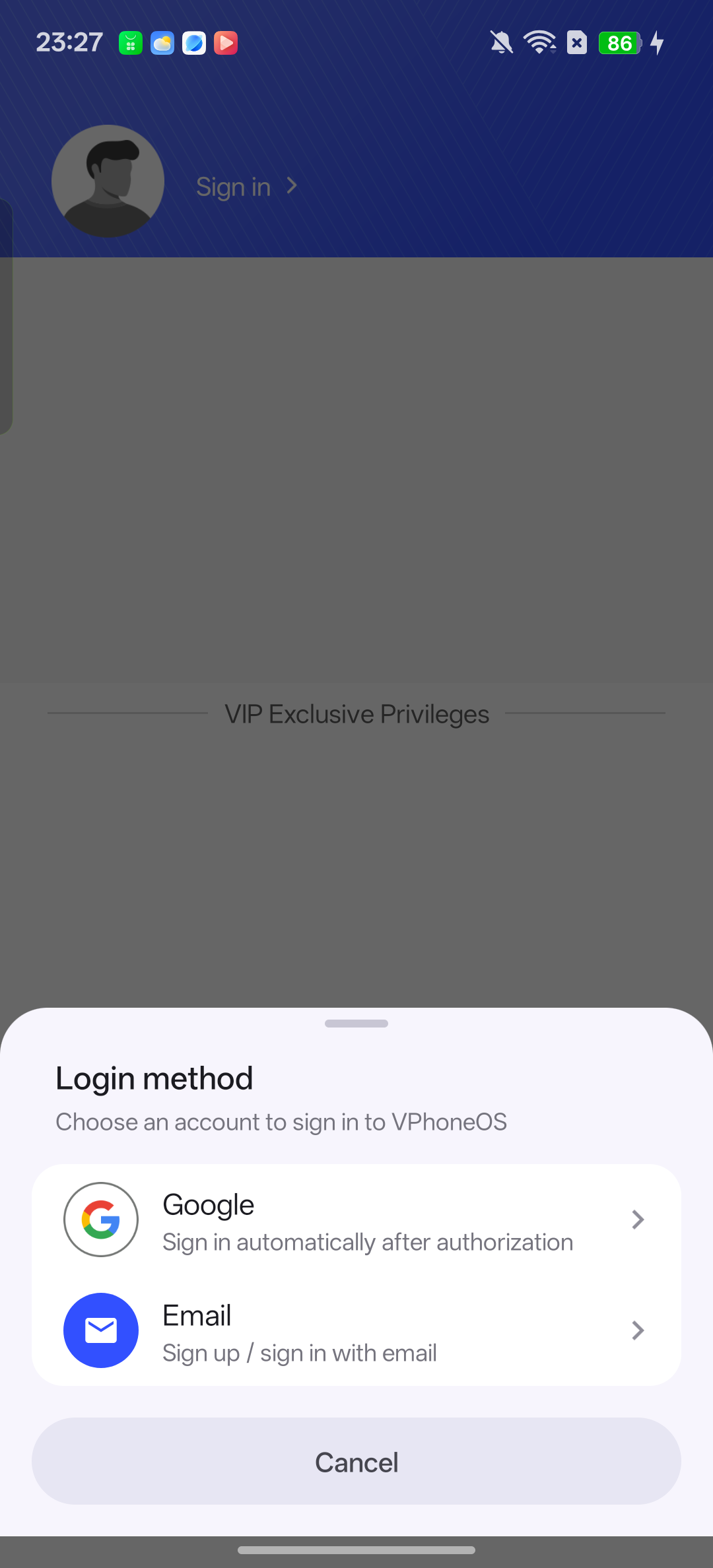
Choose the sign-in method you already use for VPhoneOS. 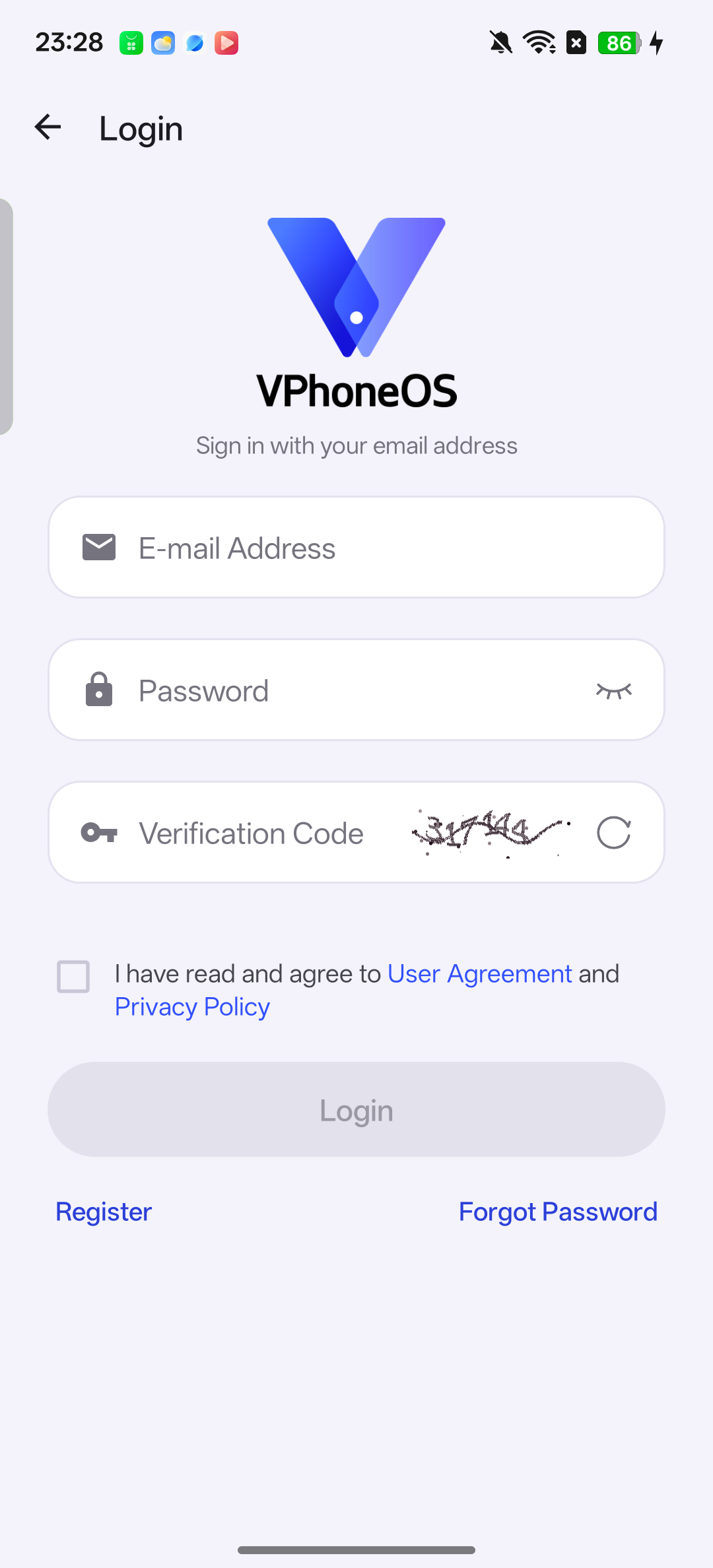
Email sign-in in the Google Play version. If you use this method, sign in to the website version with the same VPhoneOS email account. Follow the account-sharing guide
The illustrated guide shows Linked email → Not linked, the Bind email form, the two different verification codes and the website-version login screen. If you already sign in by email, skip linking and go straight to website sign-in.
Check the result Follow the route for your account and check VIP after signing in. Your virtual phones and files need to be handled separately.