Use the website version
To turn off built-in root, use the VPhoneOS website version: open the virtual phone’s Root settings, disable Enable root and restart as prompted. The Google Play version has root on by default and no switch. This does not uninstall Magisk or remove root provided by Magisk.
You can use your Google Play VIP in the website version. Sign in with the same email account. If you use Google sign-in, link a login email first.
Signing in shares your account and VIP. It does not copy your old virtual phones, apps or files. Back up the data you need before switching versions, then follow the backup and restore guide to move it.
This switch controls built-in root
Root means superuser access inside the virtual phone. These steps turn off VPhoneOS’s built-in root. They do not change your phone’s own system.
If you have also installed Magisk, turning off Enable root does not uninstall Magisk or remove the root it provides. Manage Magisk separately using the Magisk guide.
Turn off built-in root
Open the correct virtual phone’s settings
VPhoneOS → Instances → your virtual phone
Find the virtual phone you want to change and check its name. Open its settings from the card. If you are already inside it, open the floating menu and choose Settings.
Check the result The settings page shows the name of the virtual phone you want to change.
Open Root settings
Virtual phone Settings → Root settings
Open Root settings and find Enable root. If this setting is missing, check that you are using the website version. The Google Play version does not have this switch.
Check the result You can see the Enable root switch for the selected virtual phone.
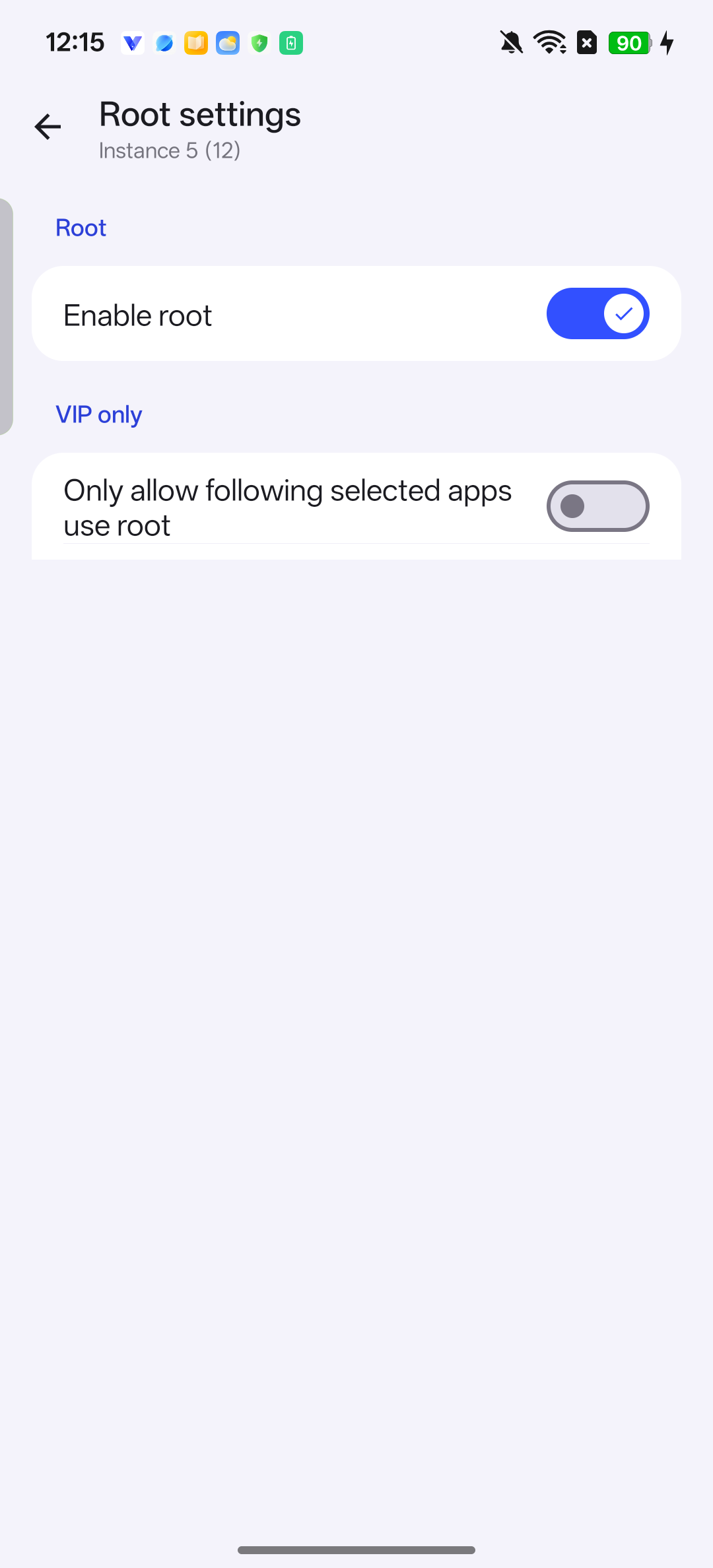
Enable root is on in this example virtual phone. Turn off Enable root
Root settings → Enable root
Turn off Enable root. If it is already off, leave it off. If the app asks you to restart the virtual phone, follow that prompt.
Check the result Enable root is off.
The screenshot shows the built-in switch only. Magisk, if installed, is managed separately.
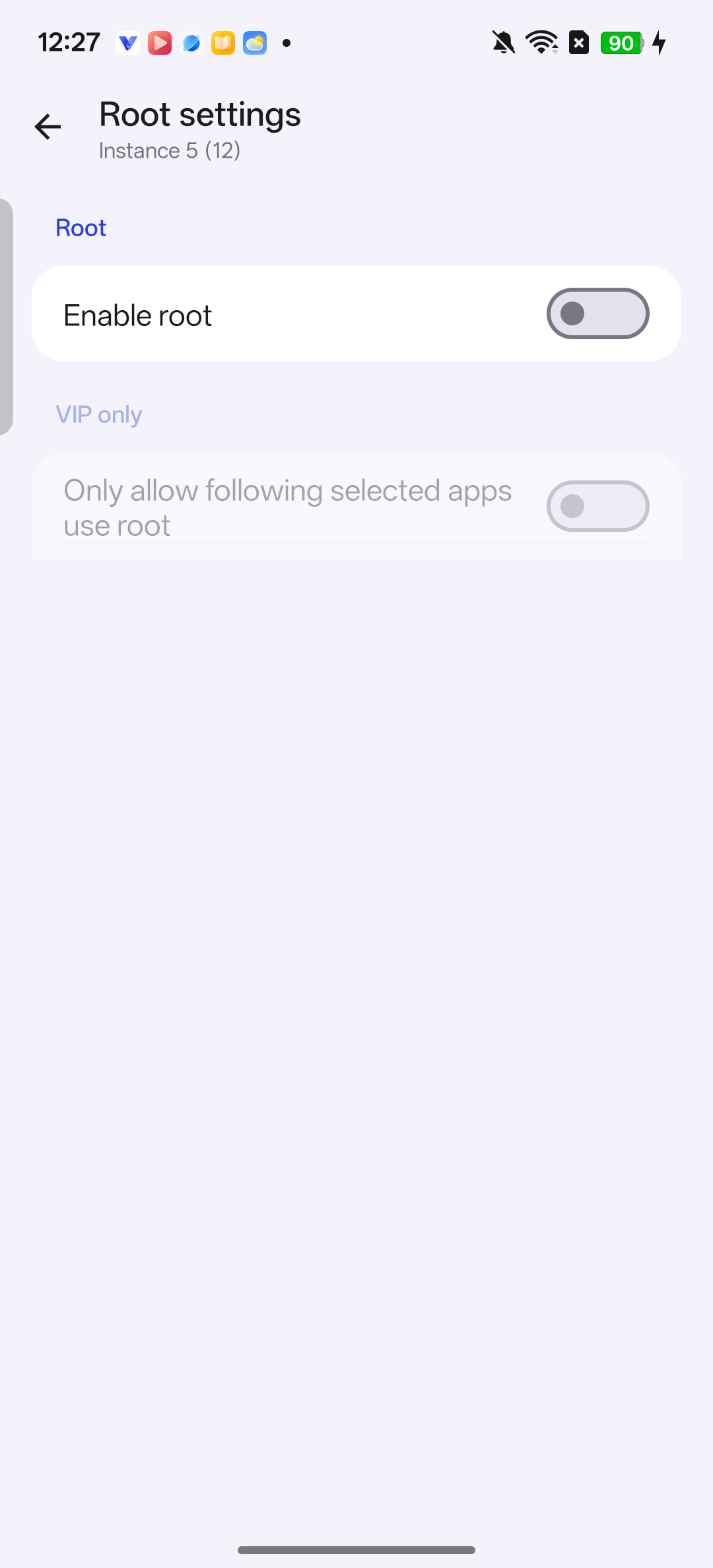
Enable root is off. This controls built-in root; Magisk is managed separately. Check the setting again
The same virtual phone → Settings → Root settings
After any requested restart, open Root settings for the same virtual phone and confirm that Enable root is still off. Then return to the app you wanted to use.
Check the result The built-in root switch remains off in the correct virtual phone.
Frequently asked questions
Can I turn off root in the Google Play version?
The Google Play version has root enabled by default and no switch to turn it off. Download the website version from www.vphoneos.com to use Root settings.
Does turning off Enable root also remove Magisk?
No. This switch controls VPhoneOS’s built-in root only. If you installed Magisk, it can provide root separately. Use the Magisk guide to manage it.
Why does an app still say the virtual phone is rooted?
First check that Enable root is off for the same virtual phone. If Magisk is installed, its root is separate from this switch. Turning off the built-in switch does not guarantee that every app will accept the virtual environment.