Before you start
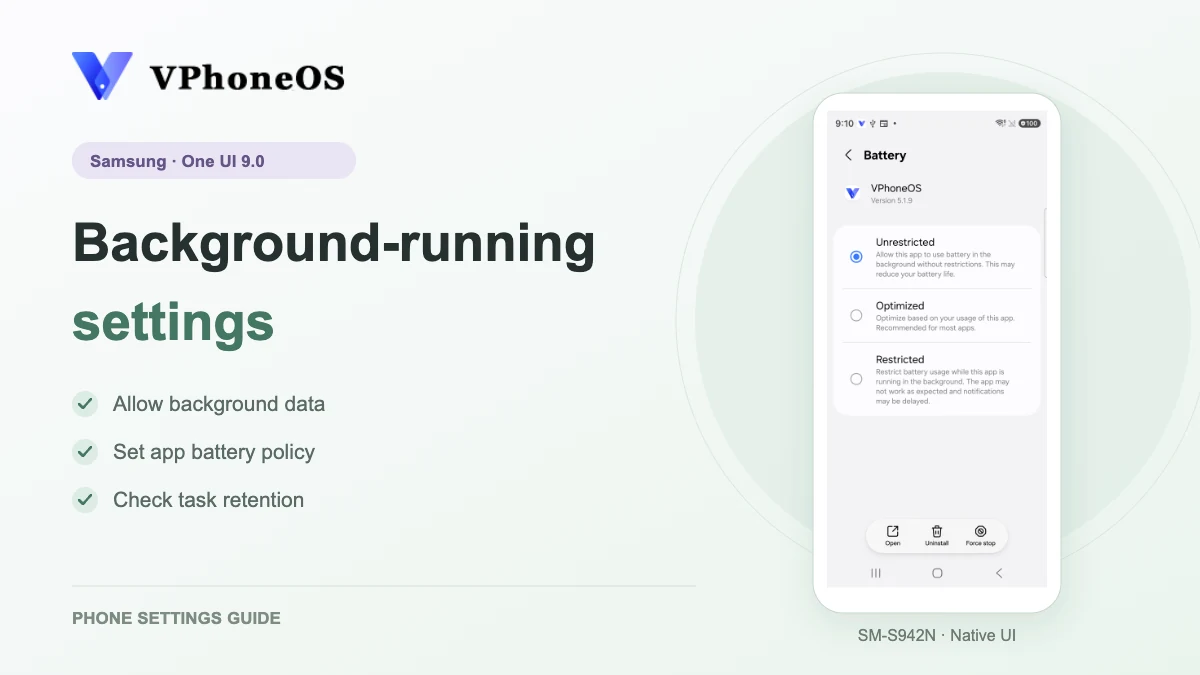
On Samsung, allow VPhoneOS to use background data and battery, then follow the relevant recent-app or background settings. Test after switching apps and turning off the screen. These settings do not guarantee uninterrupted operation.
The screenshots use a Samsung SM-S942N with One UI 9.0 (Android 17). Menus may differ on other One UI versions. Save your app or game progress and note the current settings so you can restore them later.
Set up background running
Allow background data and battery use, then pin the app card.
Allow background data
VPhoneOS → Recents → app icon above its card → App info → Mobile data
Open VPhoneOS, then open Recents. Tap the app icon above its card and select App info. Scroll to Usage → Mobile data and turn on Allow background data usage.
Check the result Allow background data usage is on.
Allow data usage while Data saver is on only if you use Data saver and the task needs that exception.
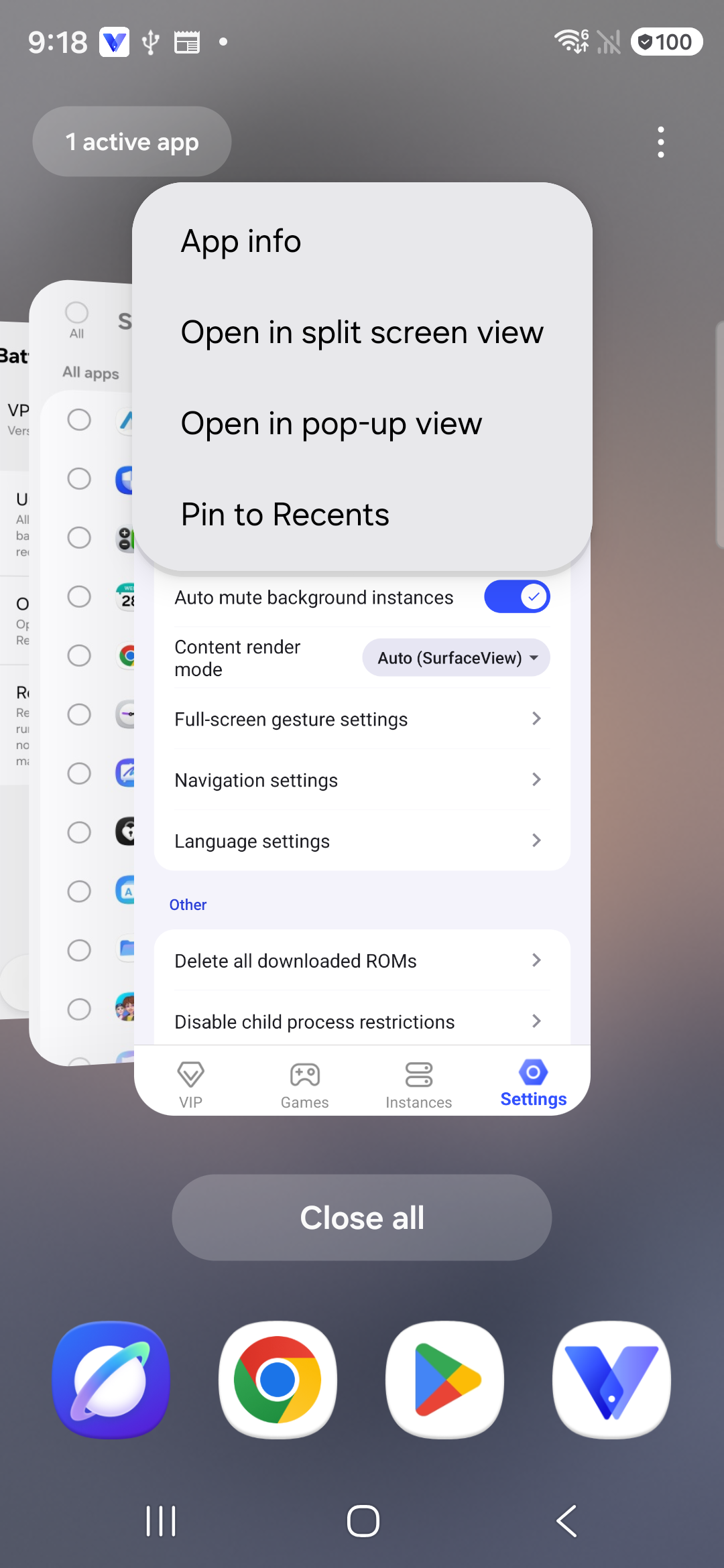
The app-icon menu in Recents provides Pin to Recents. 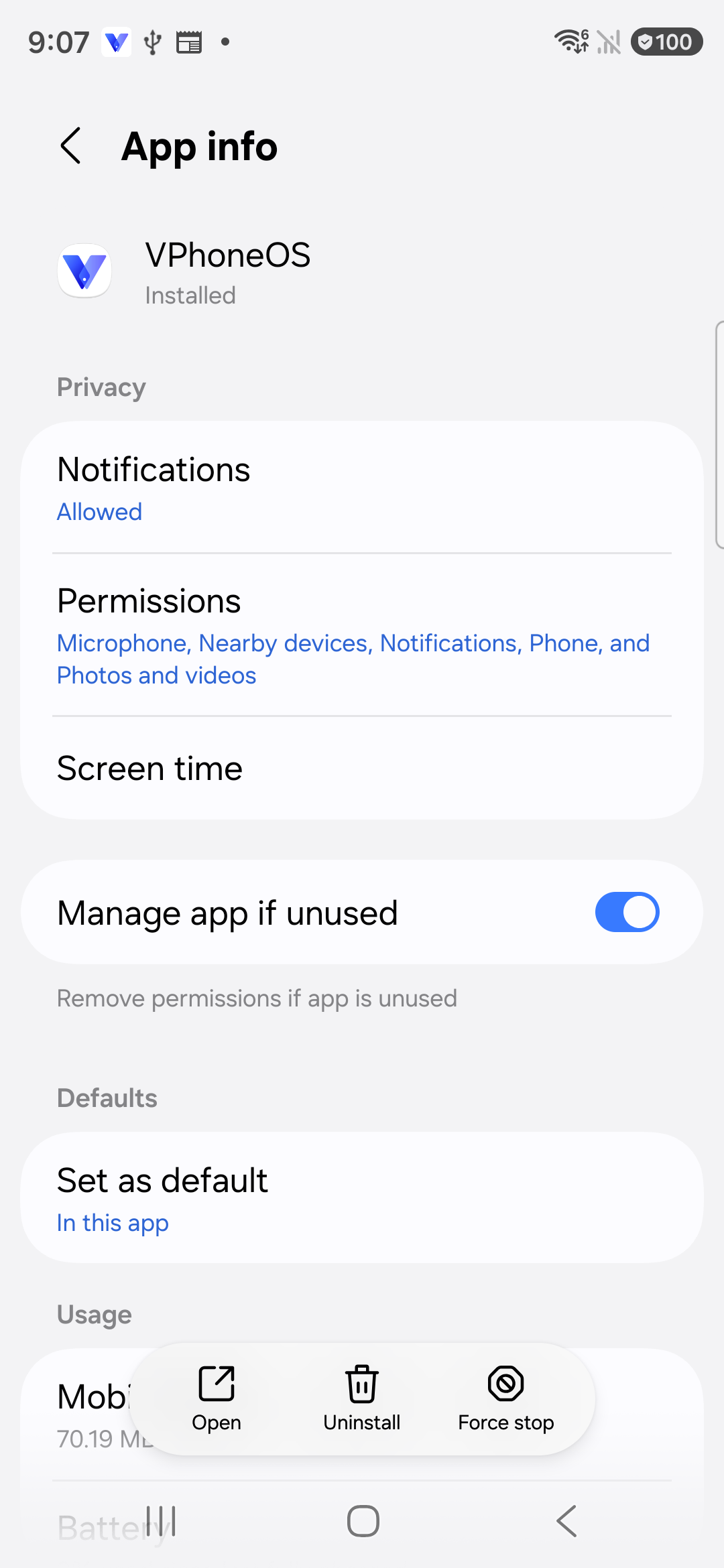
VPhoneOS App info; scroll down for data and battery options. Choose Unrestricted in Battery
VPhoneOS App info → Battery
Return to App info, open Battery and select Unrestricted.
Check the result Unrestricted is selected.
This may use more battery. If VPhoneOS still closes, open Settings → Device care → Battery → Background usage limits and check whether it is listed in Sleeping apps or Deep sleeping apps. You do not need to turn off automatic sleeping for all apps.
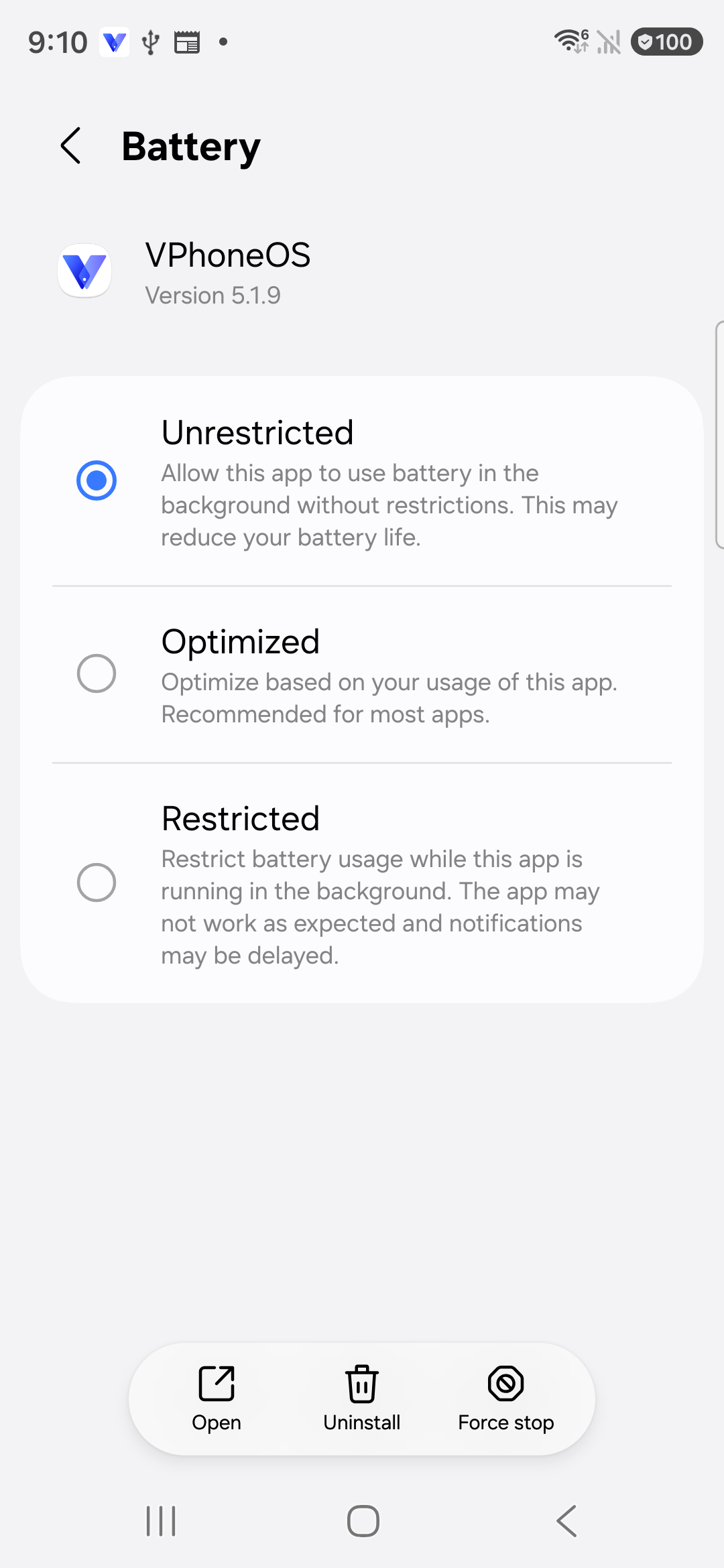
Unrestricted is selected for the VPhoneOS battery settings. 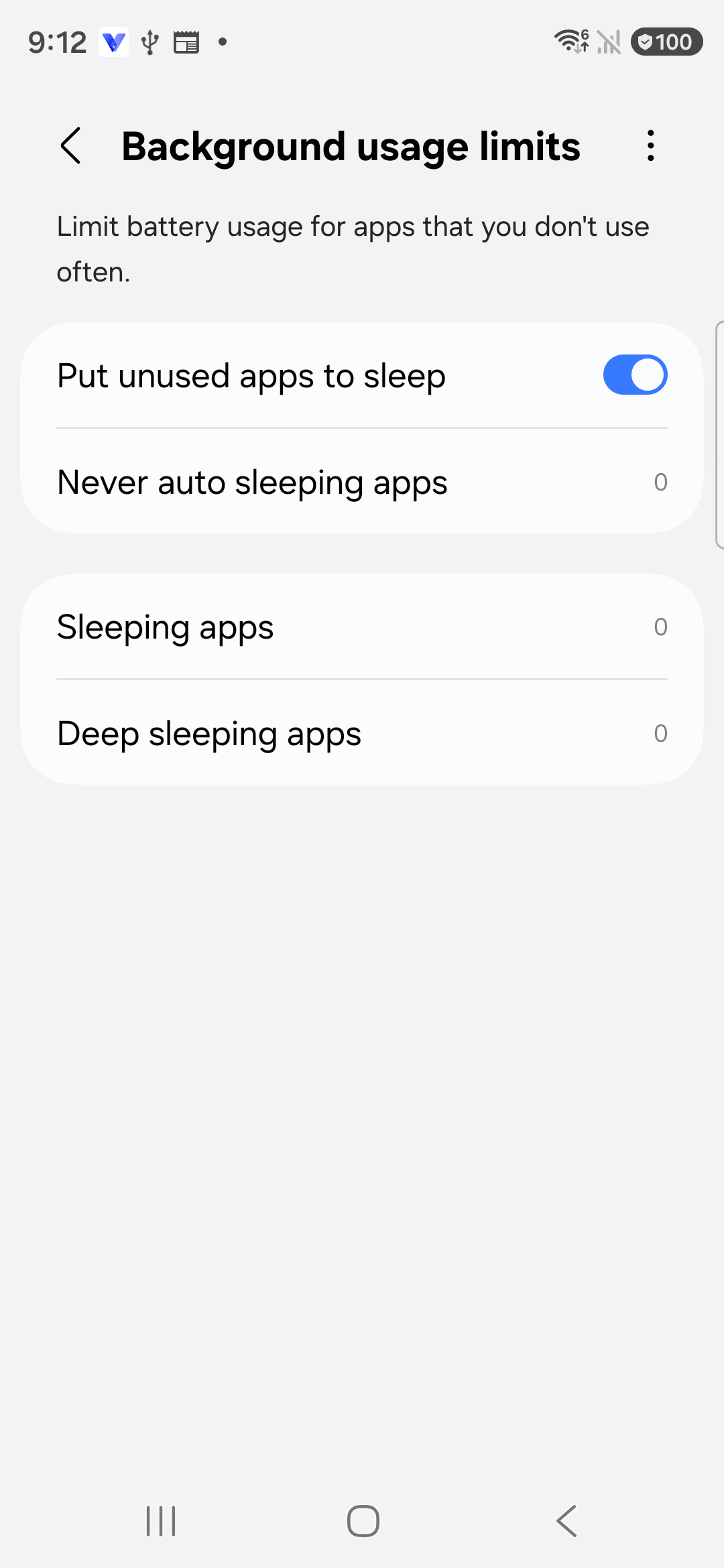
Sleeping-app lists under Background usage limits; all listed categories are empty in this view. Pin VPhoneOS to Recents
Recents → app icon above the VPhoneOS card
Open Recents, tap the app icon above the VPhoneOS card and choose Pin to Recents.
Check the result A pin badge appears at the lower-right corner of the card.
Pinning does not guarantee that the app keeps running. Return to your virtual machine later and check its progress, connection and whether it restarted.
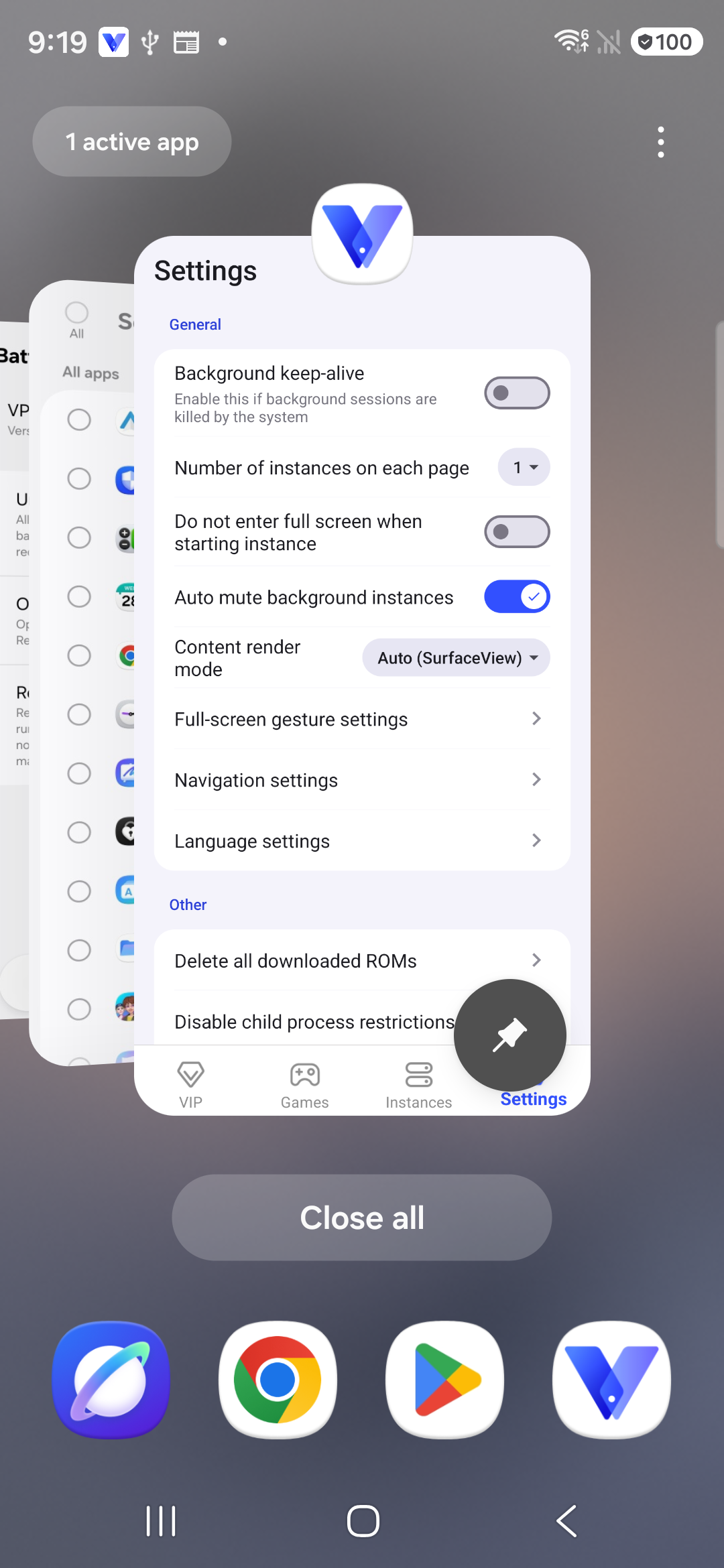
After pinning, a pin badge appears at the lower right of the VPhoneOS card.
Frequently asked questions
Will it keep running all the time?
There is no guarantee. Start the app or game inside your virtual machine, then return to the phone’s Home screen. Come back later and check its progress and whether it restarted. Test switching apps, locking the phone and longer sessions separately.
Do I need to change autostart or other developer settings?
This guide uses Samsung’s data and battery settings. You do not need another brand’s autostart menu. Disable child process restrictions is a separate setting; see the related guide for its steps.
Can I use Samsung screen-off gaming or touch protection?
These features depend on your phone, software version and supported games. The phone used here has no option to add VPhoneOS to its game list, so this guide only covers background settings. Touch protection is different from locking the phone. Check your app separately after locking it.
How do I restore the original settings?
Return to the pages you changed. Restore the background data, battery and pinning settings you noted before starting.