Before you start
On vivo / iQOO, allow VPhoneOS to use background data and battery, then follow the relevant recent-app or background settings. Test after switching apps and turning off the screen. These settings do not guarantee uninterrupted operation.
The screenshots use an iQOO Neo10 (V2425A) with OriginOS 6 (Android 16). Save your progress and check that the app or game inside your virtual machine works before you begin.
Background running means an app or game inside your virtual machine keeps running after you switch to the phone’s Home screen or another app. For screen-off running, this guide uses Off-screen autoplay in Ultra Game Mode. This is different from locking the phone with the power button.
Set up background running
Allow background data and battery use, then lock the app card. If you need data with the screen off, also check the phone’s automatic disconnection setting.
Allow background data
Phone Recent apps → VPhoneOS card title → App info → Data usage
Open VPhoneOS, then open the phone’s Recent apps. Tap the app title on its card, choose App info → Data usage and scroll down to Network management. Allow the Wi-Fi or Data network connection you use and turn on Background data usage. Leave already allowed items unchanged.
Check the result The network you use and Background data usage are allowed.
On a dual-SIM phone, check the SIM you actually use for data. Enable roaming only when needed; it is not a general requirement for background running.
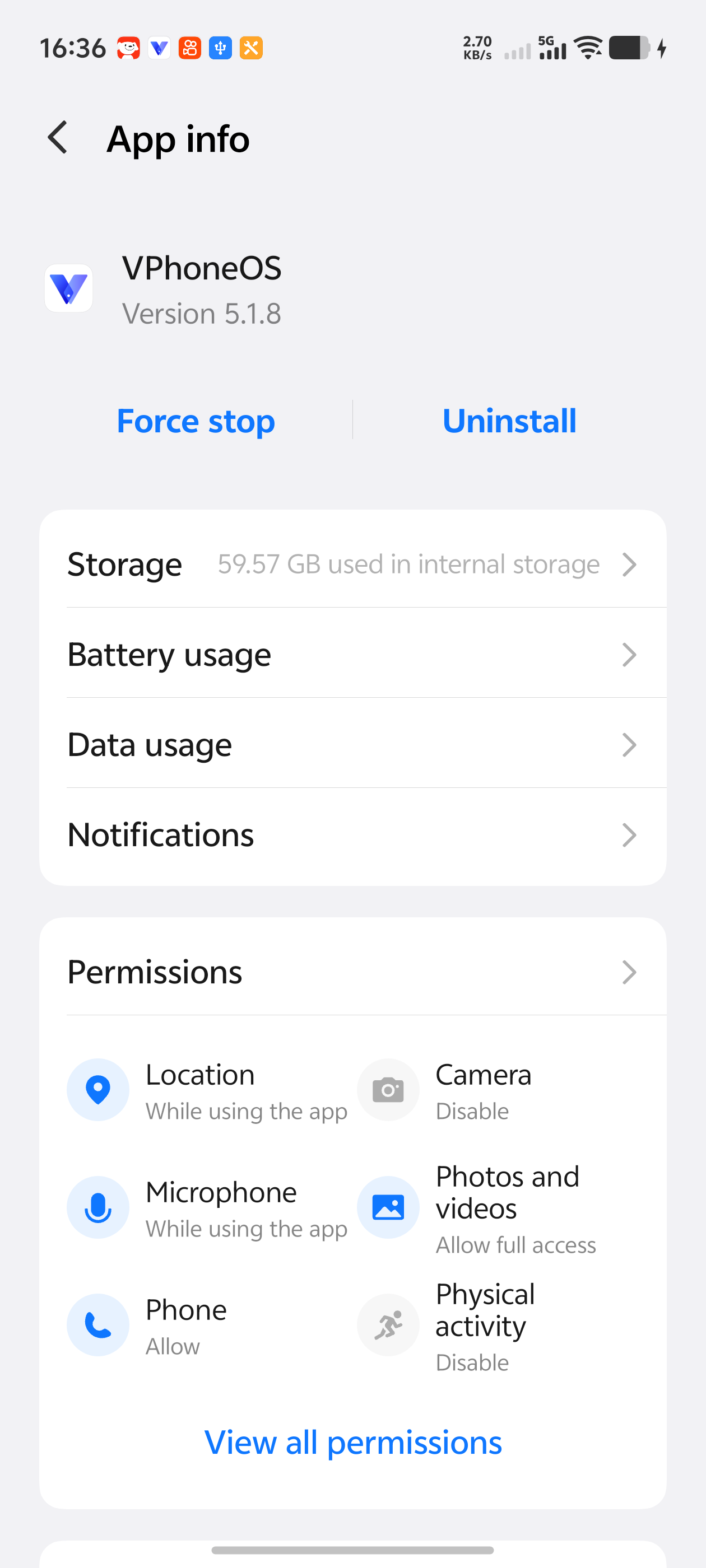
VPhoneOS App info provides Battery usage and Data usage entries. 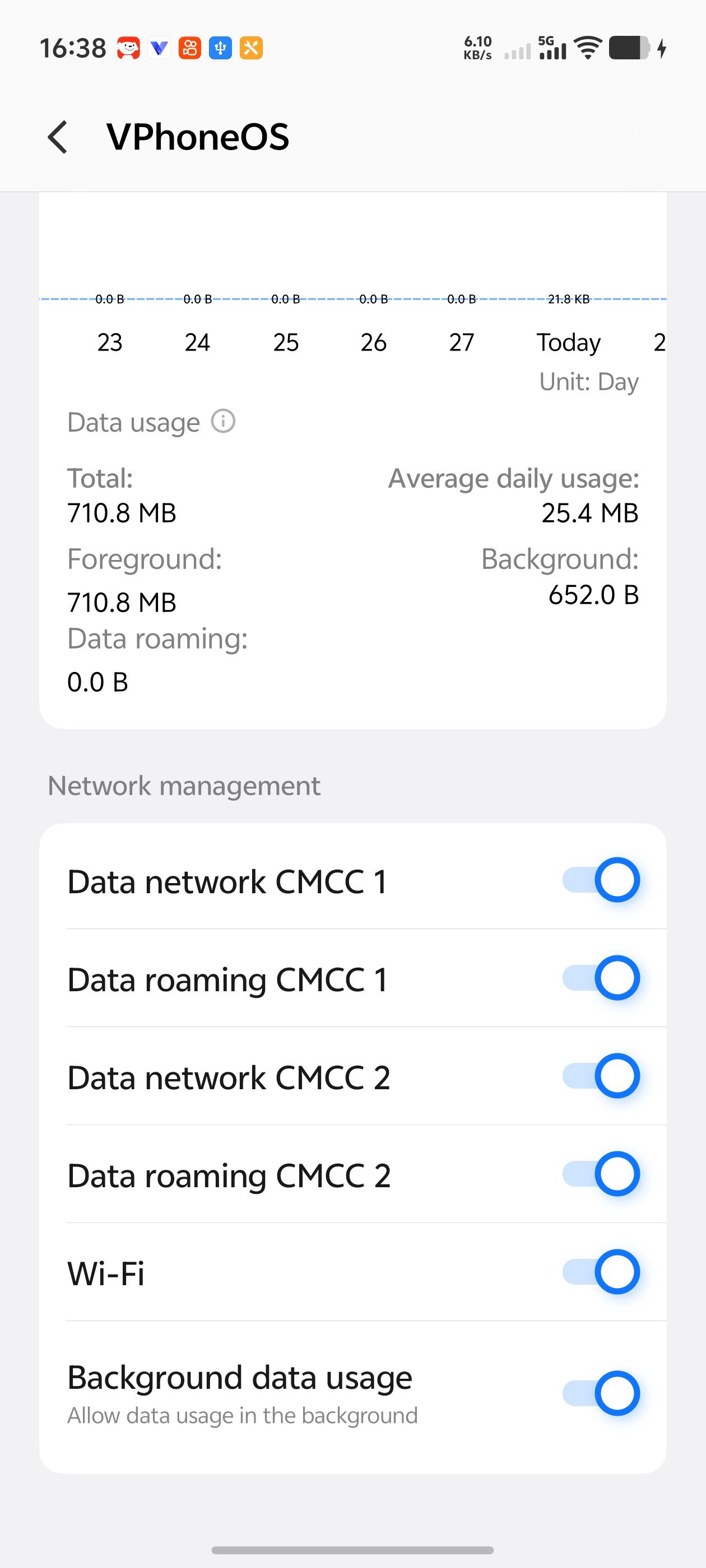
Network management after scrolling down. Check the Data network, Wi-Fi and Background data usage you need. Allow background power use
VPhoneOS App info → Battery usage → Background power control
From App info, open Battery usage, scroll down to Background power control and select Allow background power usage. Leave it unchanged if already selected. Reopen the page to check that your choice is retained.
Check the result Allow background power usage remains selected.
This may use more battery. Restore the app’s previous battery setting when you no longer need background running.
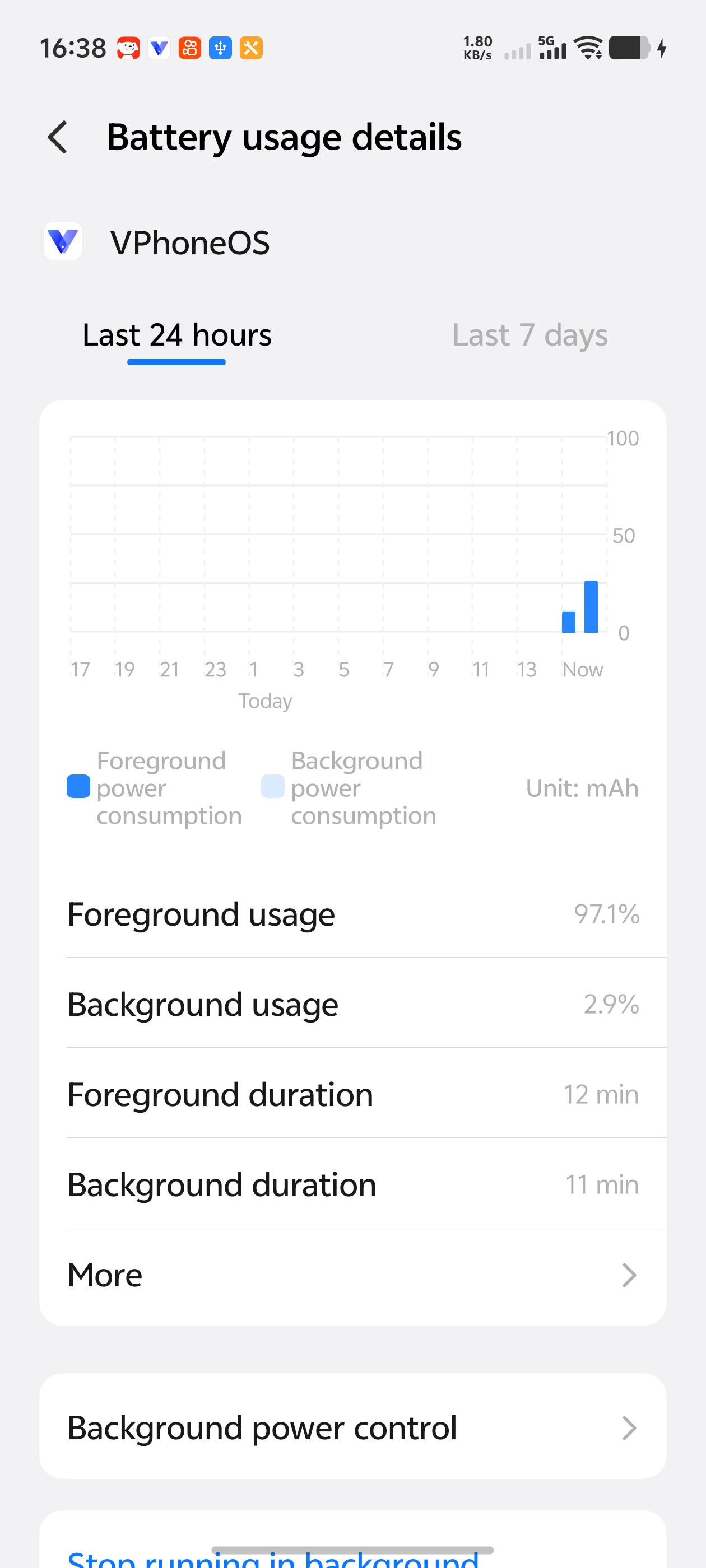
The Background power control entry at the bottom of Battery usage details. 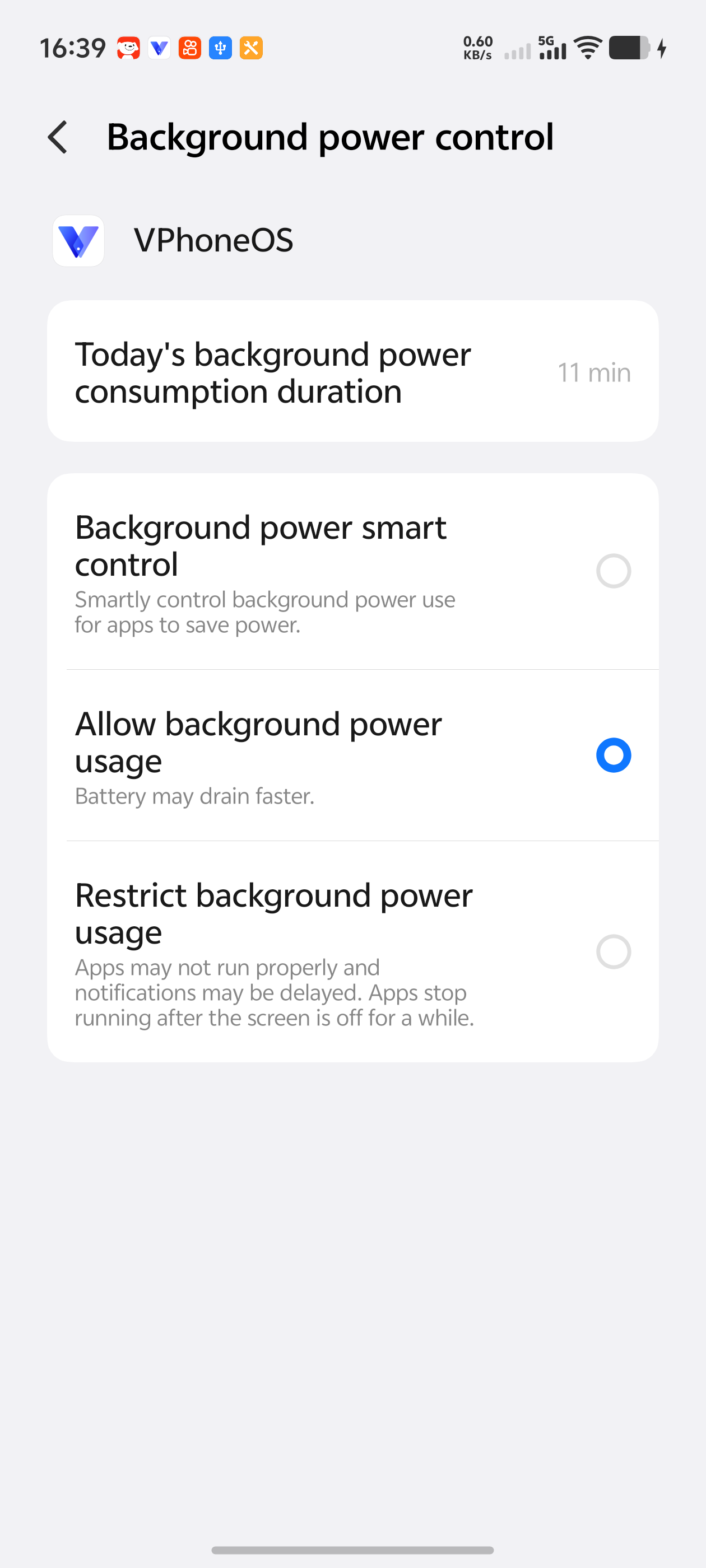
Allow background power usage is selected. This is an app battery setting. Keep data connected with the screen off
Settings → Battery → Power saving management
If your task needs a connection with the screen off, open the phone’s Battery → Power saving management and turn off Disconnect from internet after screen is off for 5 minutes. Leave it unchanged if already off.
Check the result Disconnect from internet after screen is off for 5 minutes is off.
This affects data use across the phone. Change it only when needed; leave the other battery-saving options as they are.
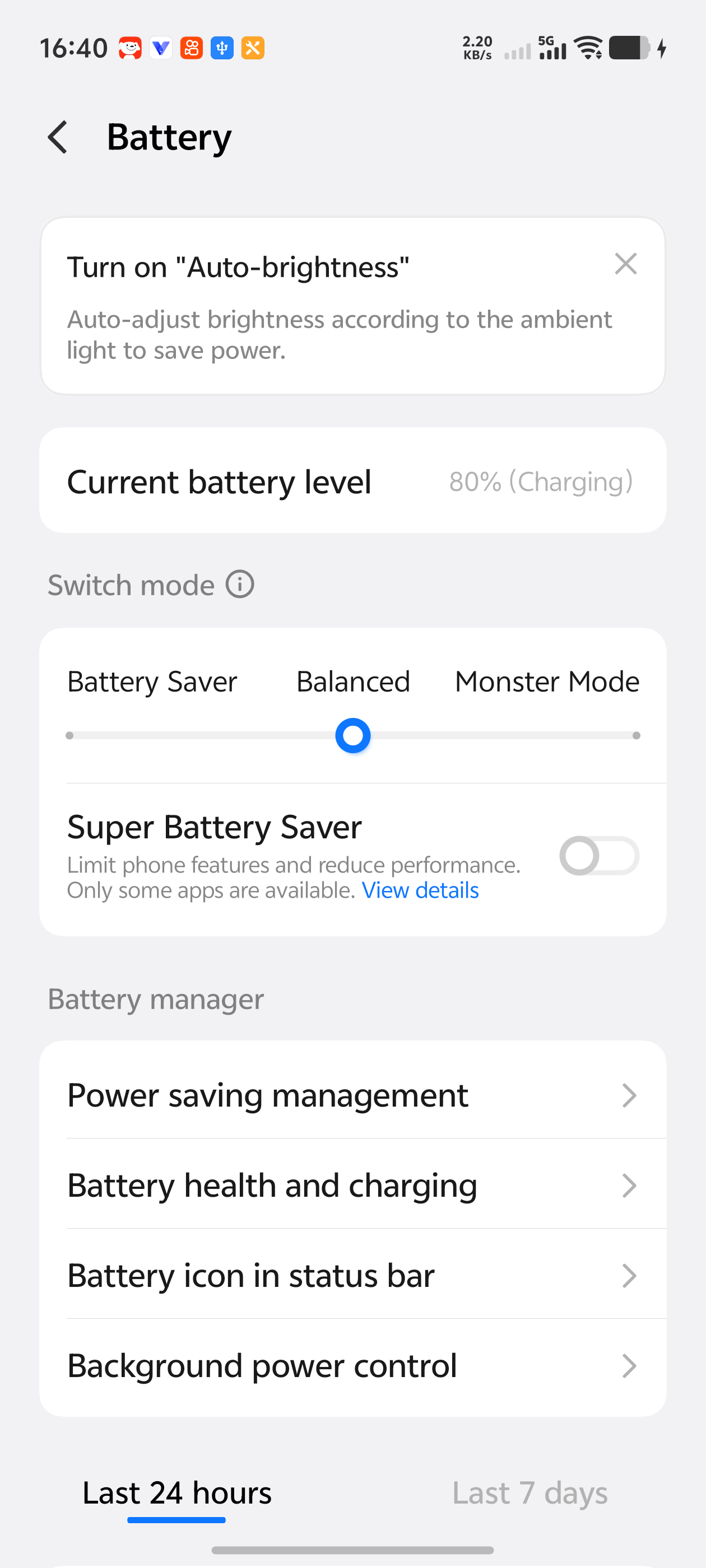
The Power saving management entry in the phone’s Battery settings. 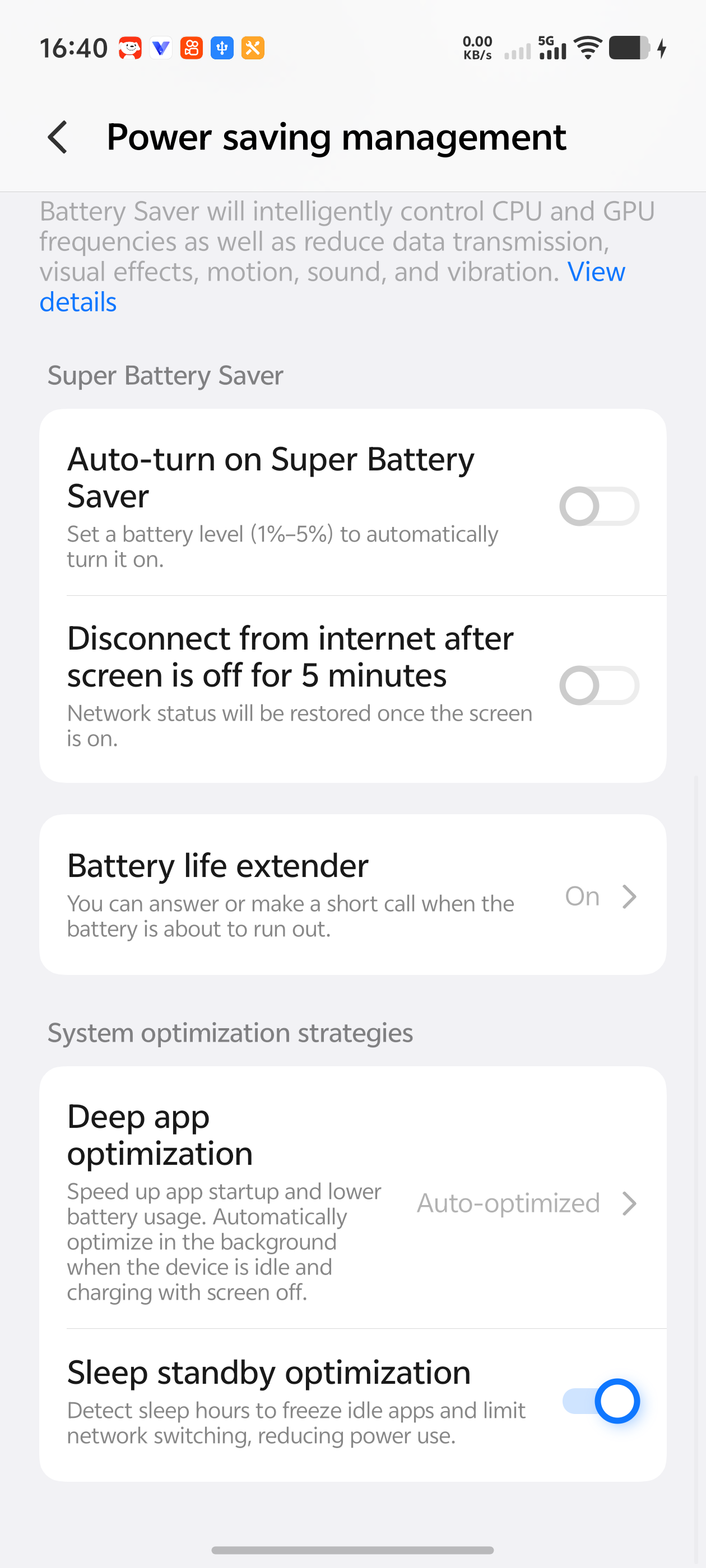
Disconnect from internet after screen is off for 5 minutes is off. Other settings on the page do not need to be changed with it. Lock VPhoneOS in Recent apps
Phone Recent apps → VPhoneOS card title → Lock
Open Recent apps, tap the app title on the VPhoneOS card and choose Lock. Check the lock indicator; leave an already locked card unchanged.
Check the result The VPhoneOS card shows that it is locked.
Locking the card does not guarantee that the app keeps running. Return to your virtual machine later and check progress and the connection.
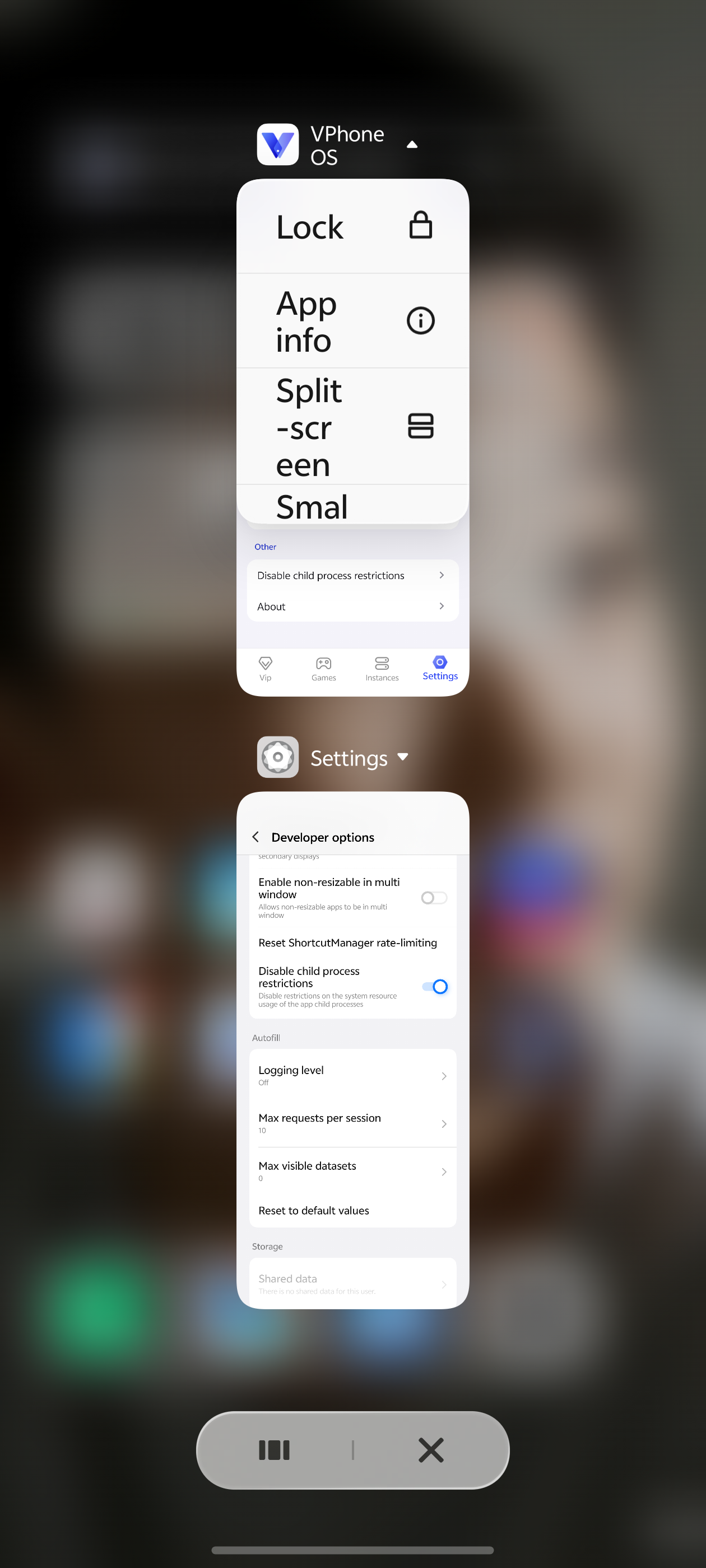
Tap the app title in Recent apps to open the Lock menu. 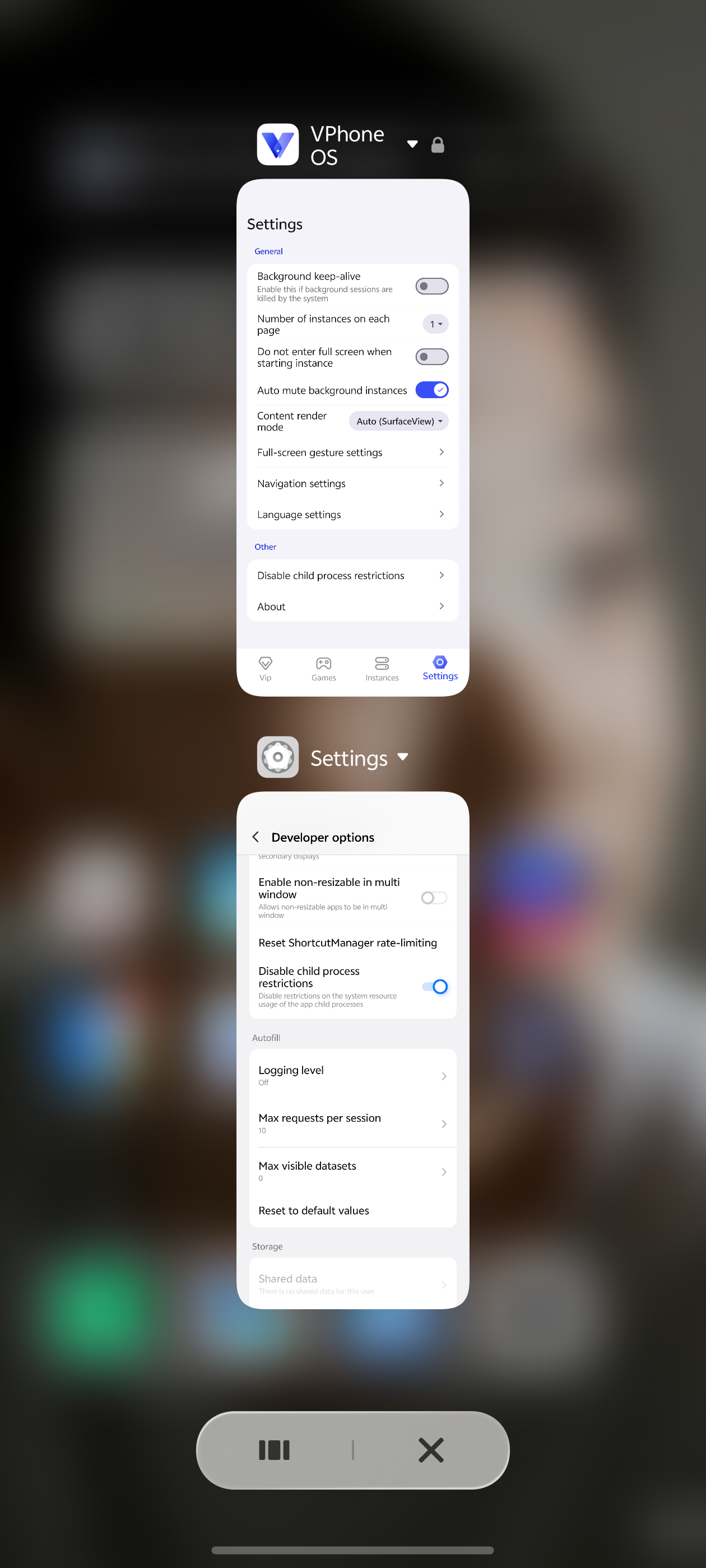
The VPhoneOS card shows a lock indicator beside the app name.
Start screen-off mode and return to the app
Add VPhoneOS to Ultra Game Mode, then start Off-screen autoplay from the app screen. Check your app or game when you return.
Open Ultra Game Mode
Phone Settings → Ultra Game Mode
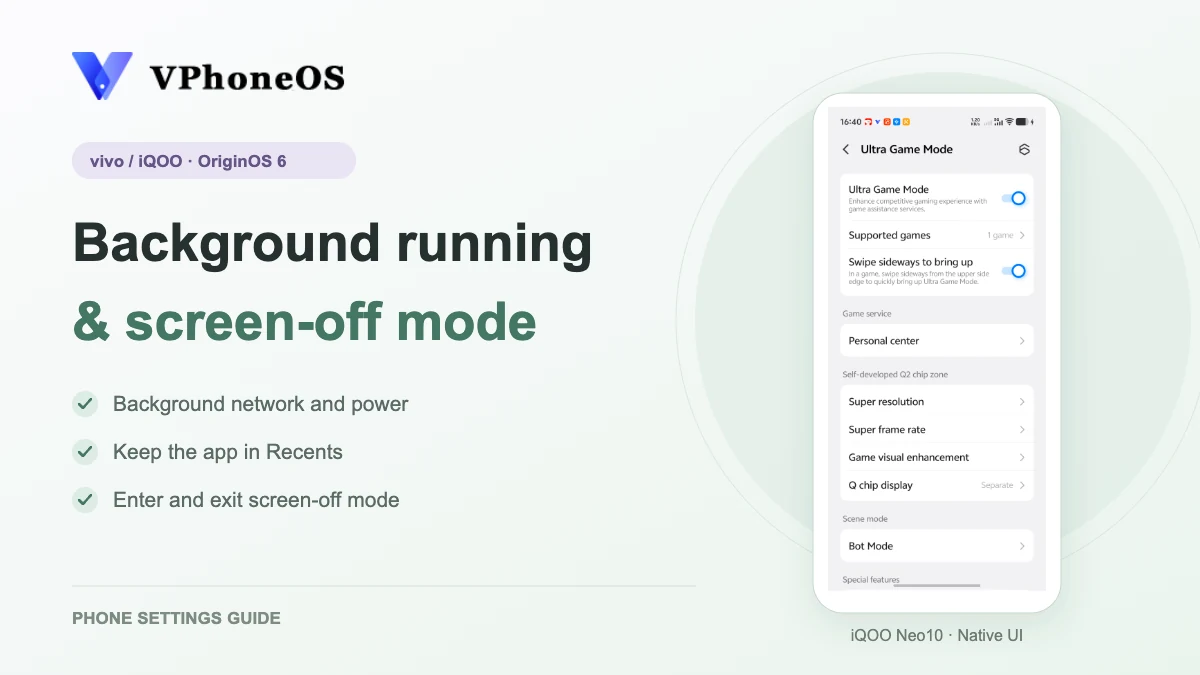
Open Ultra Game Mode in the phone’s Settings. Check that Ultra Game Mode and Swipe sideways to bring up are on; leave them unchanged if already enabled.
Check the result Ultra Game Mode and side-swipe access are enabled, with Supported games available.
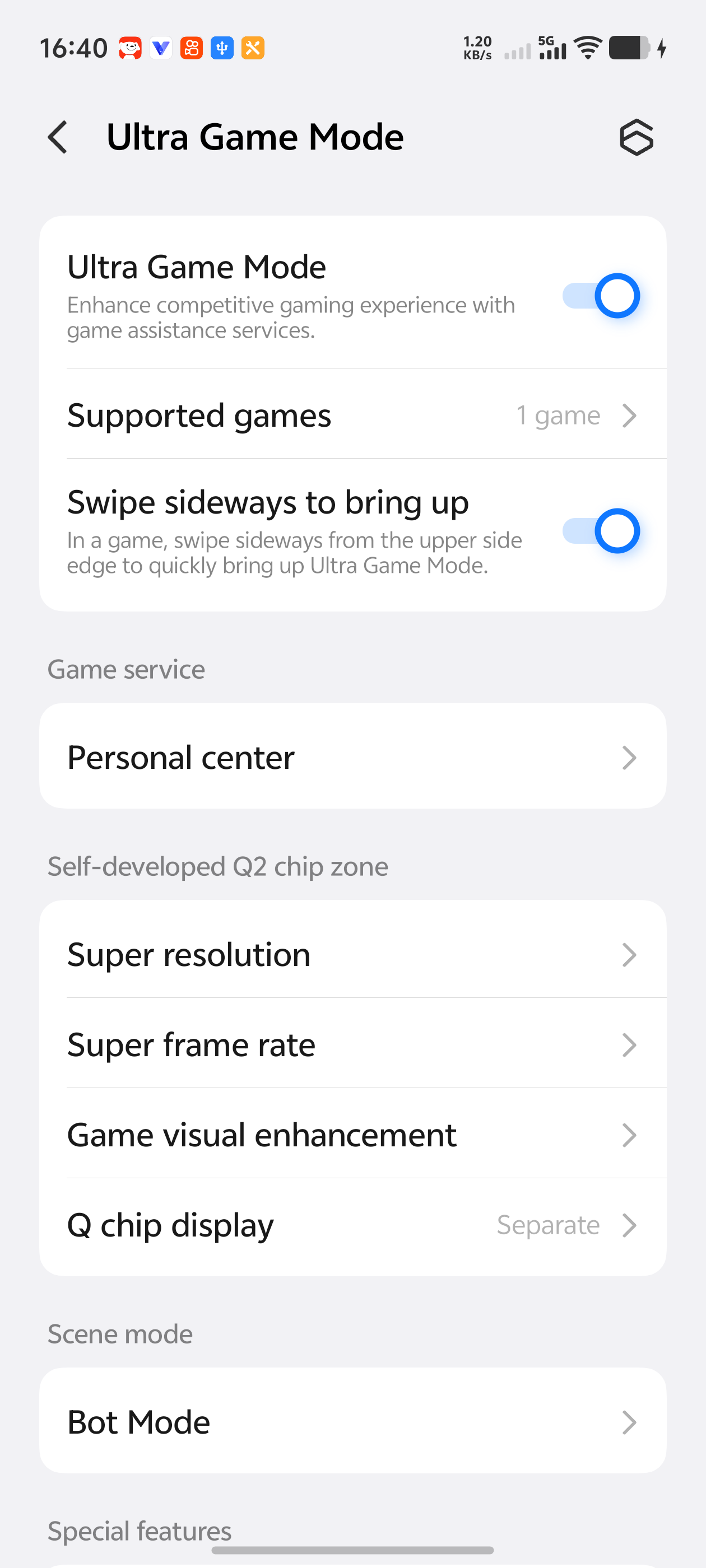
Ultra Game Mode and Swipe sideways to bring up are on; Supported games is near the top. Add VPhoneOS to Supported games
Ultra Game Mode → Supported games → Others → VPhoneOS
Open Supported games → Others, find VPhoneOS and turn on its switch. If it is already on, leave it unchanged.
Check the result The VPhoneOS switch is on.
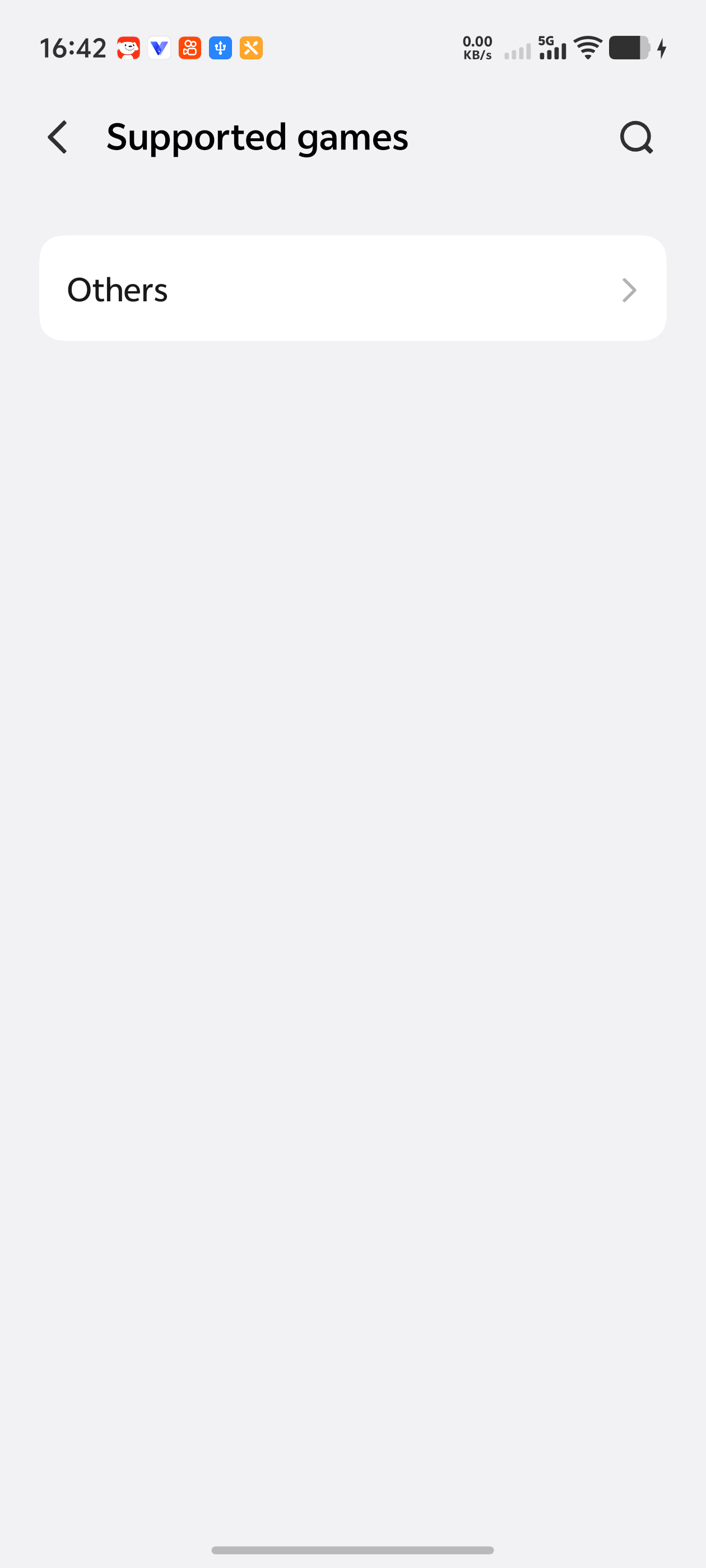
The Others entry in Supported games. 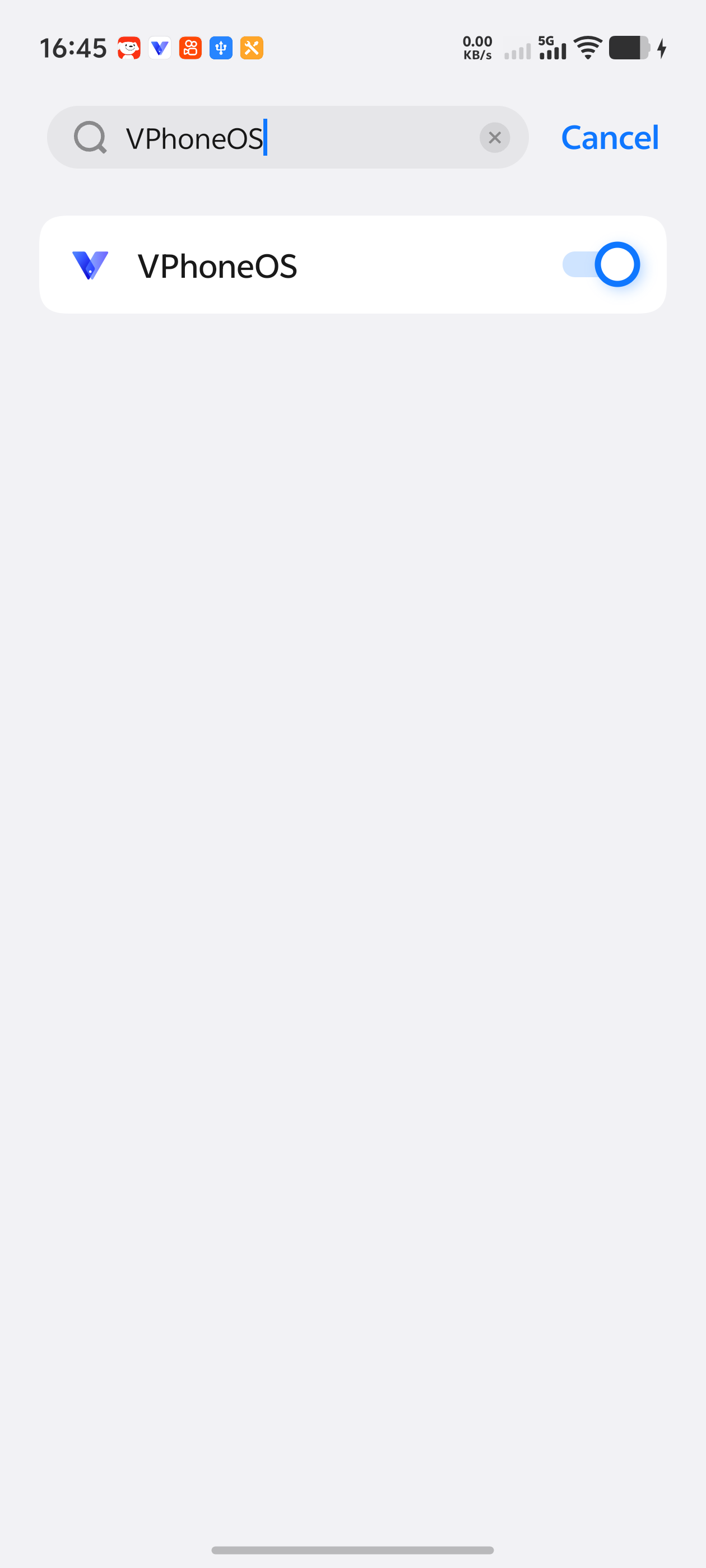
VPhoneOS is enabled in the other-apps list. Enter Off-screen autoplay
VPhoneOS → Ultra Game Mode side panel → Game tools → Off-screen autoplay
Start your app or game inside the virtual machine and check that it works. Swipe inward from the upper side edge, open Game tools, scroll down and tap Off-screen autoplay.
Check the result The screen goes dark. Use the next step to reveal the exit instruction when you want to return.
The dark screen only shows that the mode has started. Check your app or game after exiting to see whether it kept running.
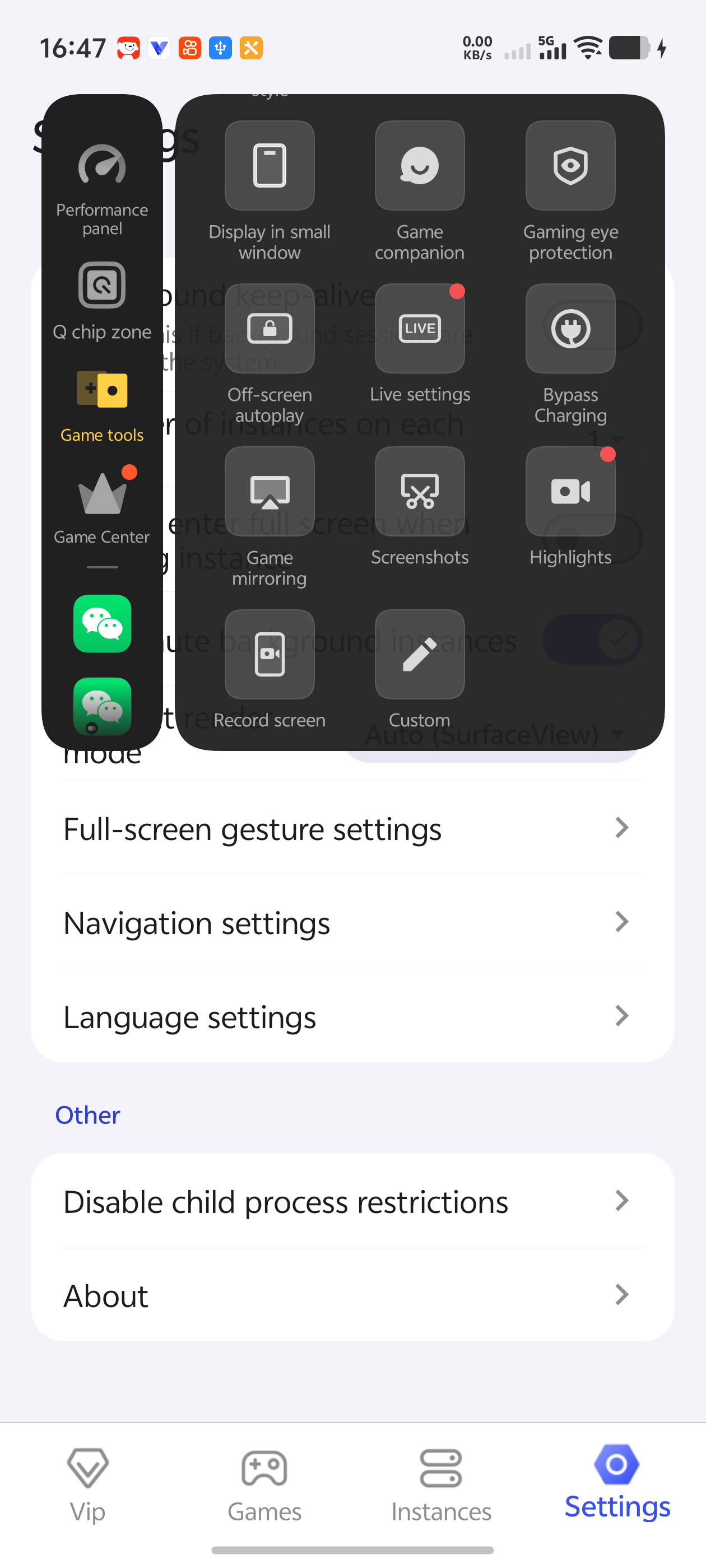
Game tools → Off-screen autoplay, shown over the app’s Settings page. Swipe up to exit and check your app
Off-screen autoplay → tap to reveal the prompt → swipe up from the lower part of the screen
Tap the screen once. When “Slide on the screen to stop autoplay” appears, make a long upward swipe from the lower part of the screen. Return to your virtual machine and check the app’s progress, connection and whether it restarted. Save your progress and restore phone-wide settings you no longer need.
Check the result The mode closes, and you can inspect and control the original task.
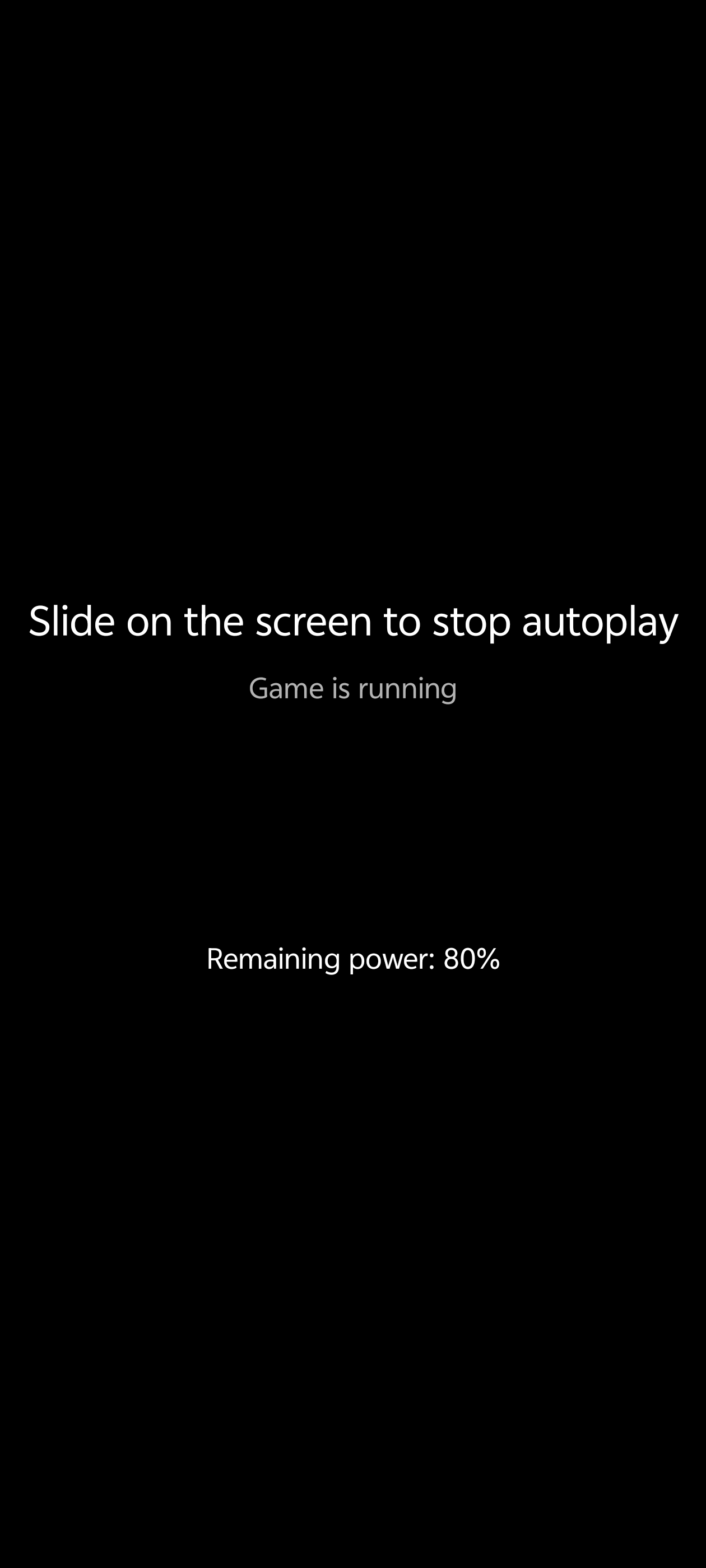
Tapping the dark screen reveals “Slide on the screen to stop autoplay”. This is a system mode prompt, check your app inside the virtual machine after exiting.
Frequently asked questions
Must I allow both SIMs and roaming data?
No. Allow the Wi-Fi or mobile-data connection you use, plus background data. Roaming is needed only when you use a roaming network.
Is pressing the power button the same as screen-off mode?
No. Screen-off mode starts from the game tools. A normal lock may apply different background limits. Try each separately and check your virtual machine afterward.
Will it keep running without disconnecting?
There is no guarantee. Memory, battery settings, the network and the app itself can affect running. Return to your virtual machine and check the app’s progress; a lock icon or dark screen is not enough.
What if Ultra Game Mode or Off-screen autoplay is missing?
Check that VPhoneOS is included in Supported games and Swipe sideways to bring up is on, then look in the game side panel from the app screen. Menus vary by phone and system version. If the option is absent, ordinary screen locking is not the same feature.
Is the child-process restriction switch part of these settings?
No. It is a separate switch in the phone’s developer options. See the related guide, and do not use Background process limit instead.