Before you start
On Huawei, allow VPhoneOS to use background data and battery, then follow the relevant recent-app or background settings. Test after switching apps and turning off the screen. These settings do not guarantee uninterrupted operation. HarmonyOS 5 and later are unsupported.
VPhoneOS does not support HarmonyOS 5 or later. Use this guide only if your older phone can install and run the Android version of the app. An older system does not always mean the app will work.
Menu names may differ between system versions. Use the search box in Settings to find an option. Note its current setting before changing it.
The screenshots below come from Huawei’s official guides and may show different system versions. For app settings, select VPhoneOS on your own phone. Tap an image to enlarge it.
Set up background running
Allow background running, check battery and data settings, then lock the app card.
Allow background activity
Phone Settings → search for App launch
Search Settings for App launch and open it. Find the installed VPhoneOS app, turn off Manage automatically and enable Run in background in the manual-management dialog, then confirm.
Check the result VPhoneOS uses manual management, with Run in background on.
Change other launch permissions only when needed. You do not need to enable them for all apps.
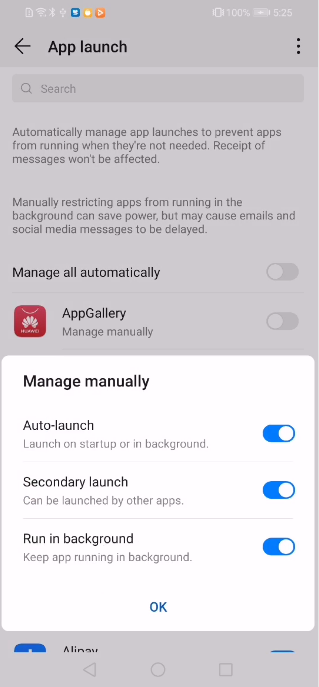
Huawei official EMUI example using AppGallery. Select VPhoneOS on your phone, enable Run in background and tap OK. Other launch switches are optional. Turn off battery optimisation for VPhoneOS
Phone Settings → search for Battery optimisation
Open Battery optimisation, choose All apps in the list filter, find VPhoneOS and select Don’t allow, then confirm.
Check the result Battery optimisation is set to Don’t allow for VPhoneOS.
Don’t allow means the system will not optimise this app’s battery use. It does not stop the app running in the background. If Power saving mode or Low battery mode is on, turn it off on the Battery page only when needed. These changes may use more battery.
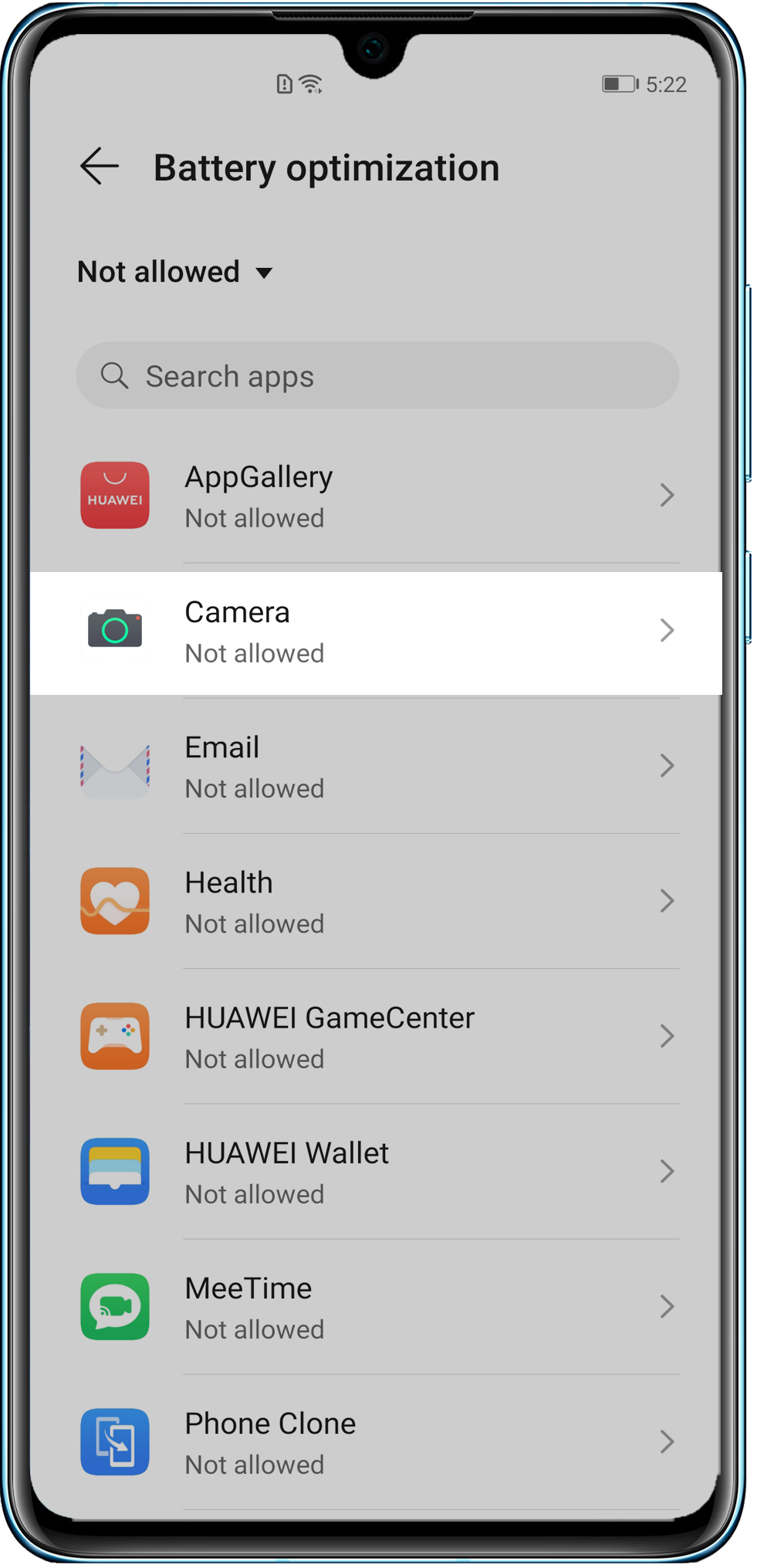
Huawei official example: Camera is set to Not allowed. Switch the list to All apps, find VPhoneOS and choose Don’t allow. Allow data use when the screen is off
Optimizer → Data usage → Network access; Settings → Battery → More battery settings
In Optimizer → Data usage → Network access, allow the Wi-Fi or mobile data that VPhoneOS needs. Then open Settings → Battery → More battery settings and enable Stay connected while asleep (called Stay connected when device sleeps on some versions). Leave it on if already enabled.
Check the result VPhoneOS can use the network it needs, and Stay connected when device sleeps is on.
This may use mobile data when Wi-Fi is unavailable. If Data Saver is on, allow unrestricted data for VPhoneOS only when needed. You do not need to turn Data Saver off for all apps.
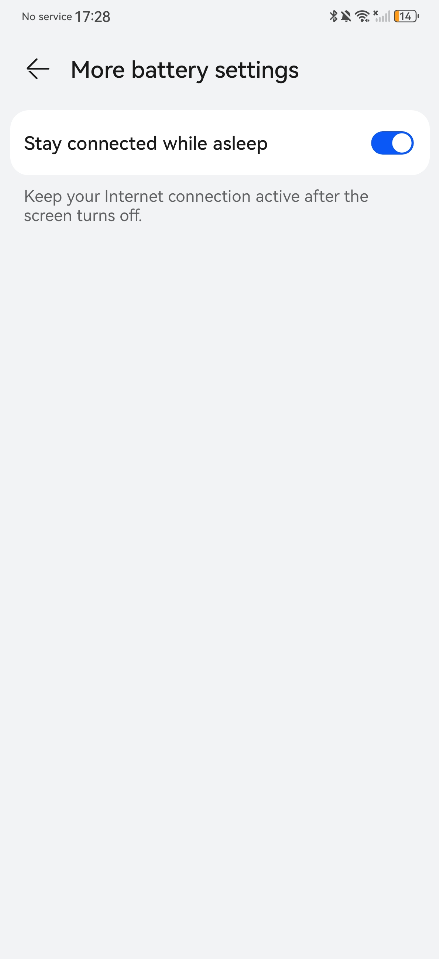
Huawei official example: enable Stay connected while asleep. Some versions call this Stay connected when device sleeps. Leave the other settings as they are. Lock the app card, then check your app
Open VPhoneOS → Recents on your phone
Start the app or game inside your virtual machine. Open Recents on your phone and pull down the VPhoneOS card to lock it. Return later and check progress, the connection and whether the app restarted. If you need to run with the phone locked, try a short lock first and check again.
Check the result A lock icon appears on the card. Return to your virtual machine to check whether the app or game kept running.
Locking the card does not guarantee the system will keep the app open. It also does not turn on a game tool’s screen-off mode.
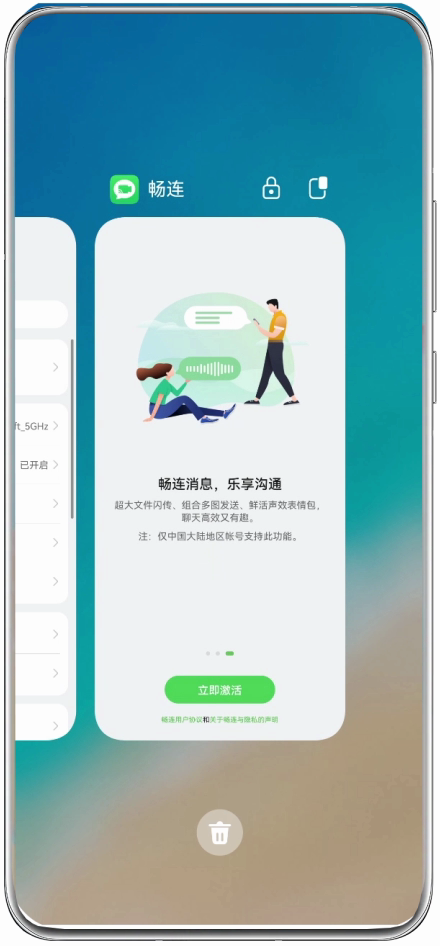
Chinese interface shown; the lock icon and swipe direction are the same. Frame from Huawei’s official video using MeeTime. The lock icon appears above the card after a downward swipe. Do the same on the VPhoneOS card.
Frequently asked questions
Can I follow this on HarmonyOS 5 or later?
No. The product does not support HarmonyOS 5 or later, and these legacy launch-management and battery-optimisation paths should not be applied to those systems.
Is this a gaming screen-off-mode guide?
No. This guide changes background running, data use and app-card locking. It does not turn on a game tool’s screen-off mode. If you need to keep running after a normal lock, try it and check your app afterward.
Will it keep running all the time?
There is no guarantee. Memory, temperature, the network and the app itself can affect running. Try a short session before a longer one. Check progress inside your virtual machine; a lock icon or an enabled switch is not enough.
How do I restore the original settings?
Return to these pages and restore the values you recorded. Pull down the card again in Recents to unlock it. Restore only the settings you changed.